Inventory
Overview
Every item across every account on one page, and the five things you can do with a selection.
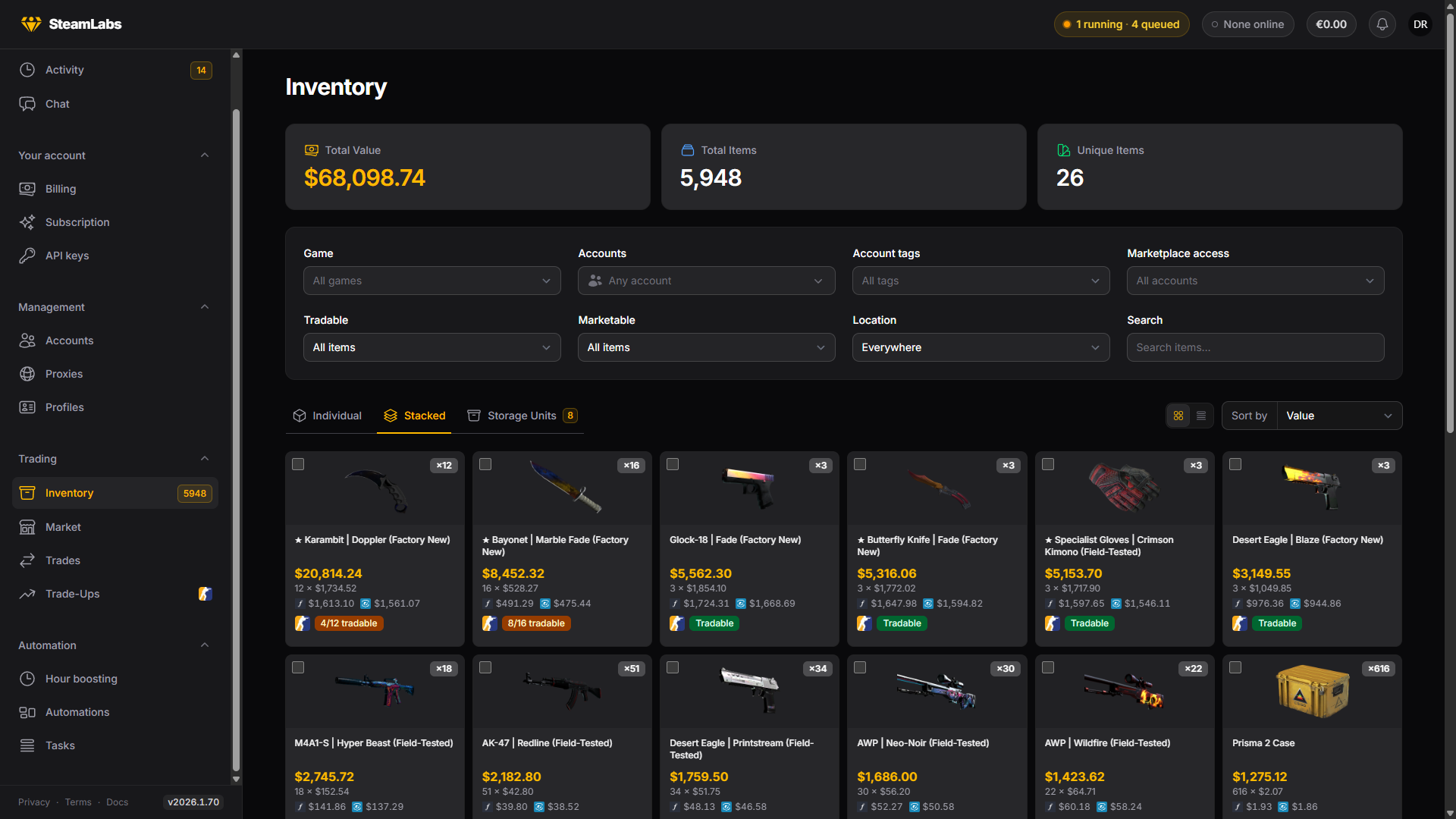
Inventory sits in the Trading group and holds every item on every account you own. It is also the place most item work starts: selling, sending, storing, using and trading up all begin with a selection here.
How items get here
Items are not read live. They land after an account completes an inventory sync, which is part of the Refresh Details task. Until an account has run one, it shows nothing.
Automatic refresh
SteamLabs can keep inventories current for you. Open Inventory settings with the gear button on the Inventory page and turn on Automatic refresh. It is off by default.
Two things can trigger a refresh, and you can use either or both:
- Refresh old inventories: an account is refreshed once its inventory is older than the age you pick, from 30 minutes to 30 days. Each account goes on its own clock, so an account that a task refreshed an hour ago is left alone.
- Refresh after these events: only the account involved is refreshed, about 2 minutes after the event.
| Event | When it fires |
|---|---|
| Incoming trade offer accepted | An offer sent to the account was accepted on Steam, in the mobile app or by another tool |
| Steam Market buy order filled | Bought items arrive in the inventory |
| Steam Market listing ended unsold | A listing was cancelled or removed outside SteamLabs, so the item came back |
| FarmLabs drop claimed | Your linked FarmLabs claimed a drop for the account. Shown only with a FarmLabs link |
| Items received by a SteamLabs task | A weekly drop or service medal claim, an armory redemption or a DMarket withdrawal finished |
Several events on one account close together lead to one refresh, and the same account is refreshed after events at most once every 10 minutes. Things SteamLabs does itself, like accepting an offer, buying from a store or a trade-up, already refresh the inventory when they finish, so they are not on the list.
Under Which accounts, turn on Only accounts with these tags or groups to limit automatic refreshes to accounts with any of the tags or in any of the groups you pick. The exclusions below it always win: an excluded account is skipped even when it matches. Manual refreshes ignore both.
The three views
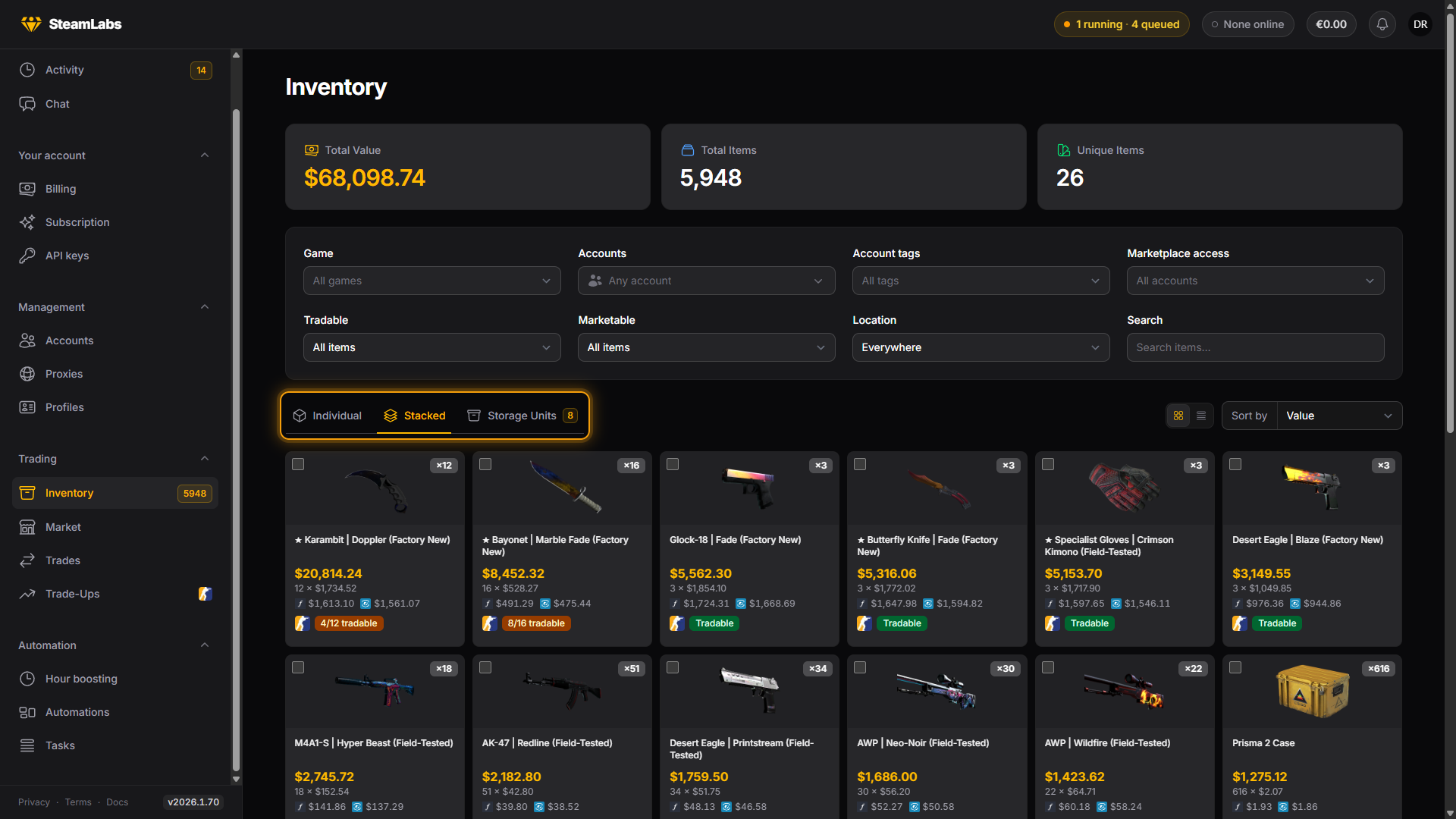
Switch views with the buttons above the grid.
| View | One entry is |
|---|---|
| Stacked | One item, counted across every account |
| Individual | One Steam asset, on one account |
| Storage Units | One CS2 storage unit, not the items inside it |
Stacked is the one to use for "how many of these do I have". Individual is the one to use when a specific copy matters, since only it can show float and stickers. Storage units never appear as items in the first two views: a unit is a container, and Storage units covers it on its own.
Each view has a Gallery view and a List view, and its own sorts. Stacked and Individual sort by value, name, quantity and recently acquired, Individual adds float (lowest first), and Storage Units sorts by fill level or name.
Rarity
Every CS2 item carries its grade in the color Steam uses for it: Consumer Grade through Covert for weapons and knives, Base Grade through Extraordinary for cases, stickers and gloves, Distinguished through Master for agents. In gallery view the card's image glows in that color and a chip names the grade; in list view the grade sits under the item name. TF2 and Steam items have no grade.
The grade comes from the Game Coordinator once an inventory refresh has read the item, and from Steam's own item type before that, so it shows even for accounts that have not run a full refresh yet.
Filtering
The filter row narrows every view at once:
- Game: CS2, TF2, or plain Steam items
- Accounts and Account tags: whose items to show
- Marketplace access: only items on accounts that could sell on Steam, CSFloat, Market.CSGO, Skin.Land, Skinport or DMarket right now
- Tradable and Marketable: including Sellable now, which means marketable and on an account that could really list it
- Location: Main inventory, In storage units, or everywhere
- Rarity: one or more CS2 grades. A grade covers every item family of that color, so Covert also finds Extraordinary gloves and Master agents. Items with no grade drop out while any grade is selected
- Search: matches the item name word by word, in any order
- Price: a min and max next to search, against the Steam Community Market price in your preferred display currency. Items with no price count as
0. If you have no preference, or daily FX rates are unavailable, the fields are USD.
The stat cards above the grid (Total Items, Unique Items, Total Value, In Storage, Capacity) follow your filters, so they double as a quick answer to "what is this slice worth".
Selecting items
Click a card to select it. In Stacked view you pick a quantity from the stack instead, and SteamLabs decides which accounts' copies to use.
Select page takes everything on the current page. Select all takes everything matching your current filters, up to a cap:
| View | Cap |
|---|---|
| Stacked | 500 stacks |
| Individual | 1,000 assets |
Past the cap the selection is trimmed and you get a notice. Narrow your filters and repeat, or use the fleet-sized versions on Tasks → Create tasks, which work from rules rather than a list of items.
Some items are never picked up by a selection action, even when they are selected:
- Items inside a storage unit, for anything except withdrawing
- Items already listed on a marketplace, or staged as a trade-up input
- Items the action itself cannot use, for example untradable items when sending
What you can do with a selection
The bar at the bottom of the page holds five actions.
| Action | What it does | More |
|---|---|---|
| Send items | Creates trade offers to your own accounts, a trade URL, or by rules | Trading |
| Store | Deposits CS2 items into storage units | Storage units |
| Trade up | Crafts eligible CS2 items into ten-item contracts | |
| Sell items | Lists on Steam, CSFloat or Market.CSGO | Market |
| Use | Consumes armory passes and TF2 backpack expanders |
Every one of them queues worker tasks rather than acting on the spot. Follow them on Tasks.
A greyed button means your plan does not include that action. Hover it to see which plan unlocks it.
Item details
Click View details on any card for the full picture: which account holds it, when it was first seen, its asset ID, and for CS2 items the origin, float and wear, pattern seed, paint index, StatTrak count, name tag, stickers and charms.
The same slide-over shows current market prices from every source we track, with how long ago each was updated.
Using items
Use applies items in place, on the account holding them. Two things qualify: CS2 armory passes, which get activated, and TF2 backpack expanders and similar usable store items, which get applied.
Anything else in the selection is ignored, and items inside a storage unit are skipped since nothing can be used from inside a container.