Automations
Overview
Build multi-step account flows on a canvas, then let them run on a trigger.
An automation is a flow you draw on a canvas: something starts it, a set of accounts travels through it, and each step does something to the accounts that reach it. Automations sits in the Automation group. On that list, use Reorder records and drag a row to change the order. The order is yours and stays after you leave.
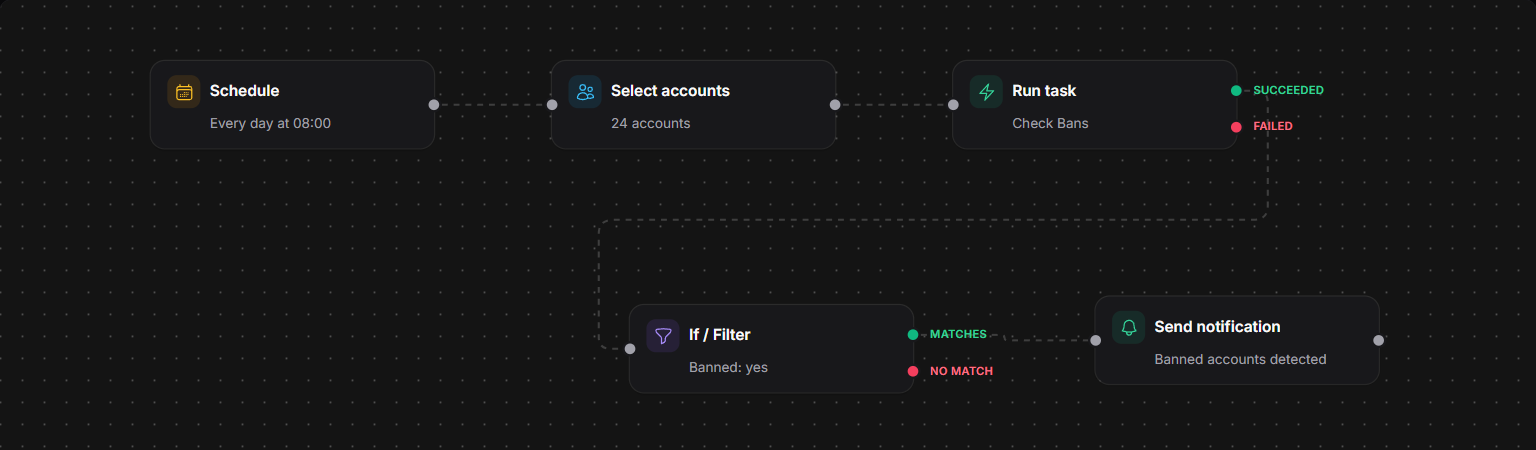
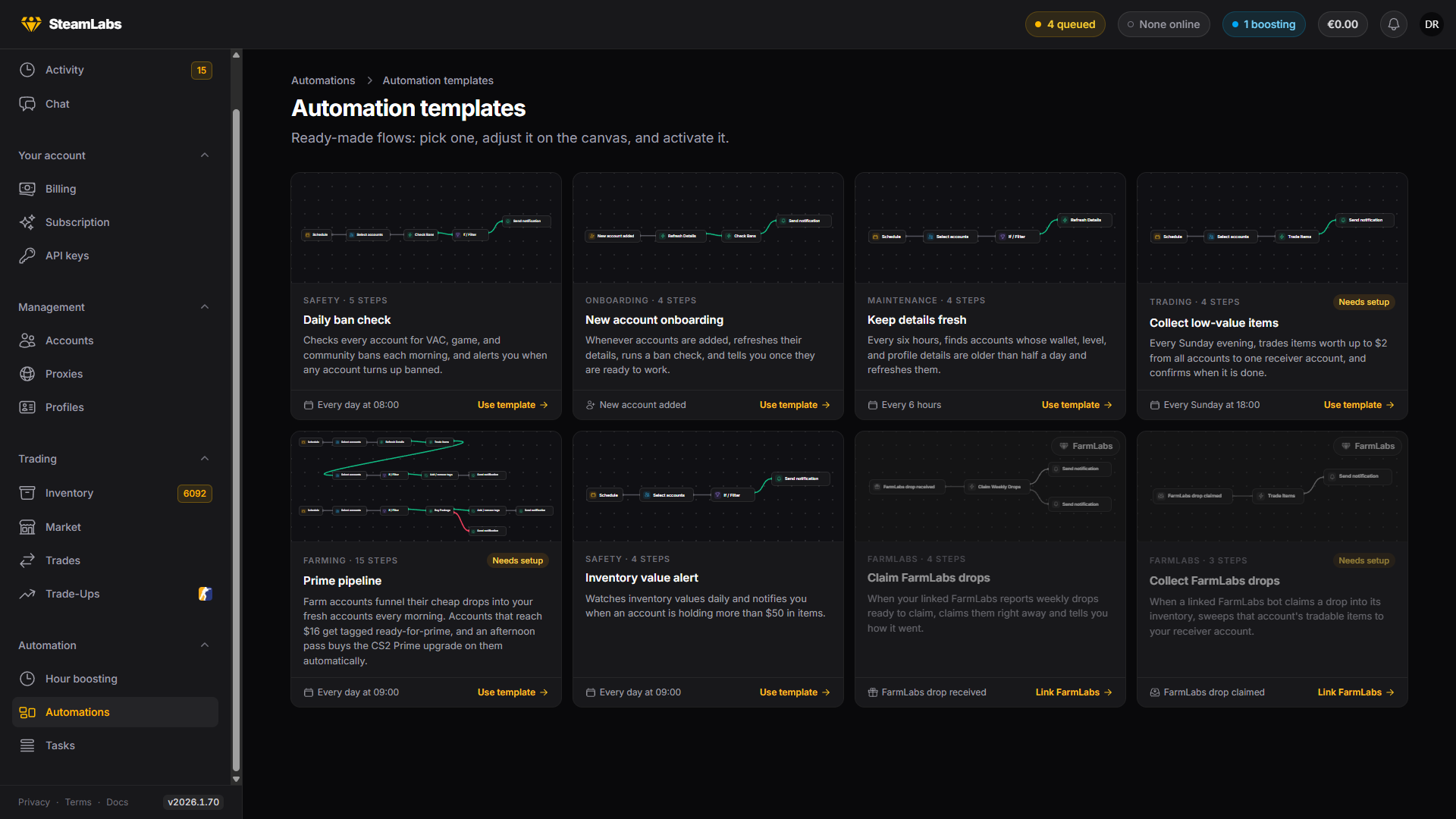
Use it for the work you would otherwise do by hand every week: refresh details on a schedule, check for bans and alert yourself, sweep drops from farm accounts into a receiver, onboard newly added accounts.
How a run works
Every automation starts with a trigger. When it fires, a run begins and accounts flow forward through the connected steps.
The important idea is that accounts travel the graph. A step acts on whatever reached it, not on your whole workspace. A filter splits the accounts in two and sends each group down its own branch, so the accounts arriving at the end of one branch are only the ones that matched every condition on the way.
Steps do not all finish instantly. A Run task step creates tasks and holds the run until they finish, then sends the accounts whose tasks succeeded down one branch and the ones that failed down another. A Wait step parks its branch for a duration you set (fixed or a random range). While that happens the run sits in Waiting and resumes on its own.
Statuses
| Status | Meaning |
|---|---|
| Draft | Being built. Nothing runs |
| Active | The trigger is live |
| Paused | Held. The trigger does not fire |
A new automation is a draft, and nothing you build runs until you activate it. If the flow has a problem (no trigger, a loop, a step missing required settings), the builder highlights it and refuses to activate until it is fixed.
Runs
| Run status | Meaning |
|---|---|
| Running | Working through the steps |
| Waiting | Parked on a wait, or on tasks that have not finished |
| Completed | Reached the end of every branch |
| Failed | A step errored |
| Cancelled | You cancelled it |
Runs on an automation is its history: when each run was triggered, how long it took, and what each step did, including how many accounts came in, how a filter split them, and how many tasks were created and completed.
You can also replay a run on the canvas, which shows the path it actually took through your flow.
The builder
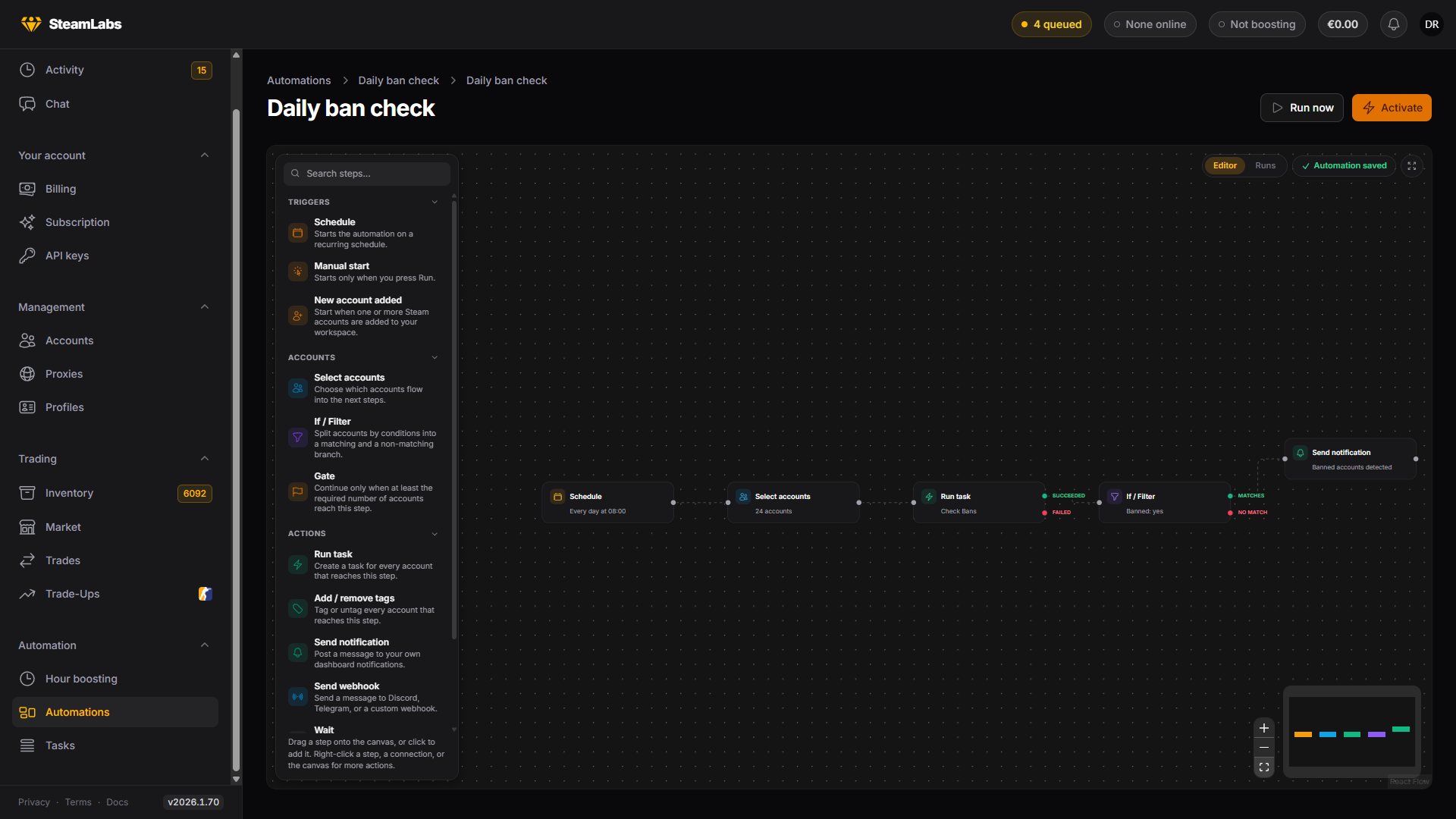
Drag a step from the palette onto the canvas, or click to add it. Connect steps by dragging from an output handle to the next step. Right-click a step, a connection, or the canvas for the rest: duplicate, disconnect, insert a step in the middle of a connection, remove.
Note is a sticky note in five colours. It never runs, it is there to explain the flow to whoever opens it next, including you in three months.
Run now starts a run by hand, which is the fastest way to test what you have built. An automation whose only trigger starts on its own cannot be run this way, and the button says so.