Market
AssetPay
Cash out CS2 skins from all your accounts to crypto, with no extra account to create.
AssetPay turns your CS2 skins into crypto. There is nothing to sign up for: no AssetPay account, no API key, no connecting. Sell from any of your Steam accounts, and every sale lands in one SteamLabs balance that you cash out in USDT or USDC.
AssetPay is CS2 only, prices are in USD, and it is included on every plan above Free.
How it works
- Sell. AssetPay buys your items outright, or you list them on the AssetPay store and wait for a buyer.
- Wait out the hold. Steam protects every trade for 7 days. Until then the money shows as Waiting.
- Cash out. Cleared money moves to Available to withdraw on the Earnings tab. Send it to your own wallet.
SteamLabs handles every trade in between. You never deliver anything by hand.
Two prices
Every item has two AssetPay prices. SteamLabs uses the same two names everywhere:
- Store price is what the item costs on AssetPay's store right now. List one cent under it and yours is the cheapest there.
- Sell now price is what AssetPay pays you for the item on the spot.
SteamLabs listings, yours included, don't count toward the store price. So SteamLabs sellers never undercut each other, and a listing never chases its own price.
The store price is usually the higher one. Listing gets you more but waits for a buyer. Sell now pays right away.
What an account needs
There is no connection step. An account can sell here once it has:
- A trade URL, so AssetPay's bot can send it an offer. Refresh details reads it from Steam.
- A mobile authenticator, to confirm the trade.
- A proxy to log in through.
Accounts missing one of these are skipped, and the sell modal tells you why.
Selling
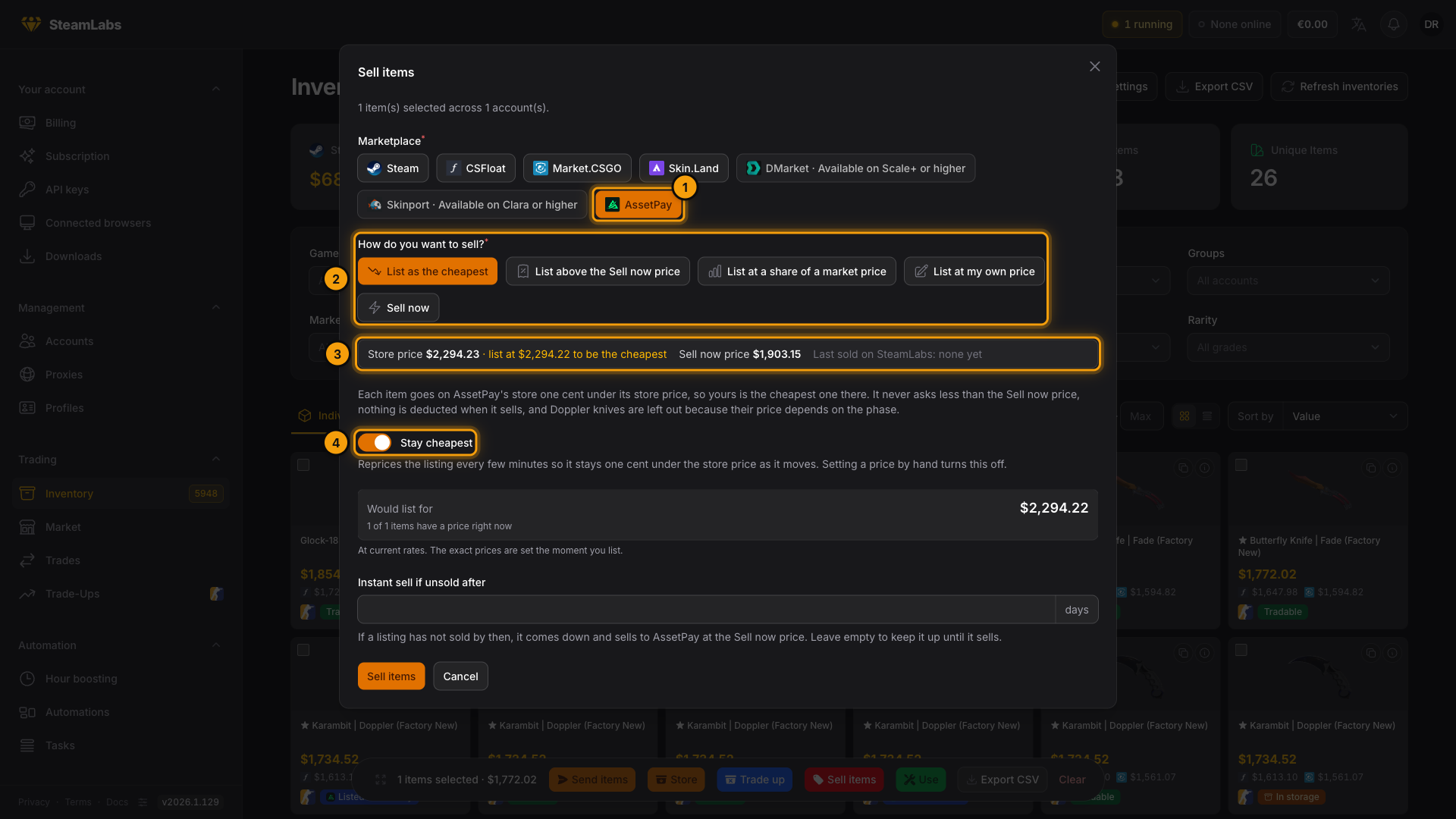
Sell from Inventory. Select items from as many accounts as you like, press Sell items, and pick AssetPay.
- Pick AssetPay.
- Choose how to sell. The listing options come first, and List as the cheapest is picked for you.
- With one item selected, you see its Store price, the price to list at to be the cheapest, its Sell now price, and when it last sold on SteamLabs.
- Stay cheapest keeps the listing the cheapest as the store price moves. See Stay cheapest.
| Option | What happens |
|---|---|
| List as the cheapest | Lists each item one cent under its store price, so yours is the cheapest on AssetPay's store. It never asks less than the Sell now price. Doppler knives are left out, because their price depends on the phase. |
| List above the Sell now price | Lists each item at a percentage of its Sell now price, for example 110%. |
| List at a share of a market price | Lists each item at a share of another market's price, but never below the Sell now price. |
| List at my own price | You type the price. |
| Sell now | AssetPay buys the items at the Sell now price. Its bot sends each account a trade offer, and SteamLabs accepts it. |
AssetPay takes no fee on a listing sale, so your listing price is what you receive.
The total under the options uses AssetPay's current price list. The exact prices are set when you list, or when a Sell now sale starts. Items AssetPay is not buying are left out.
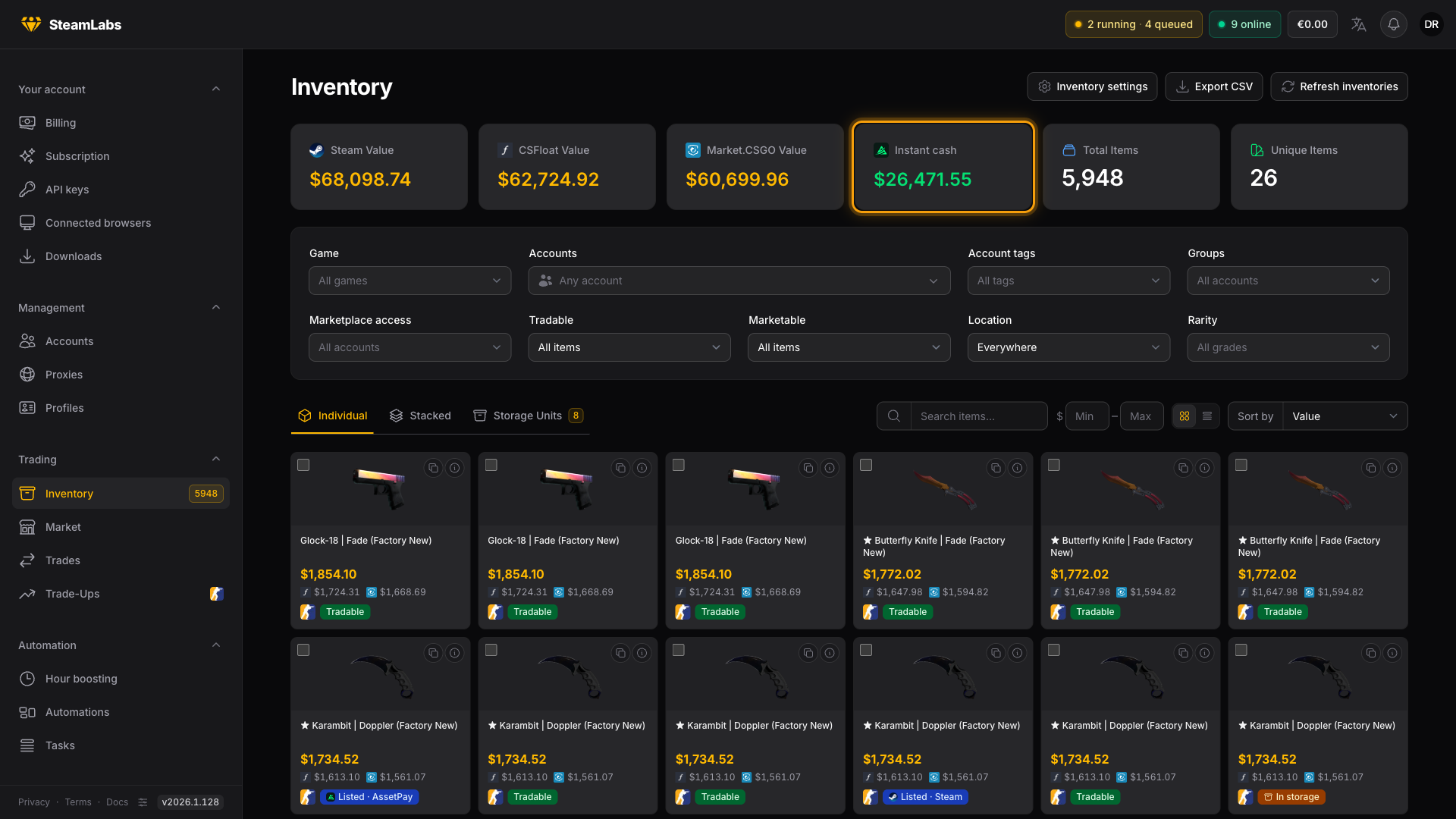
The Instant cash tile on Inventory adds up the Sell now price of everything across all your accounts.
For rules instead of hand-picked items, use the Sell on Market task with AssetPay. It has the same selling options, and the item conditions choose which items go.
Listings
Listings land under Sell Listings.
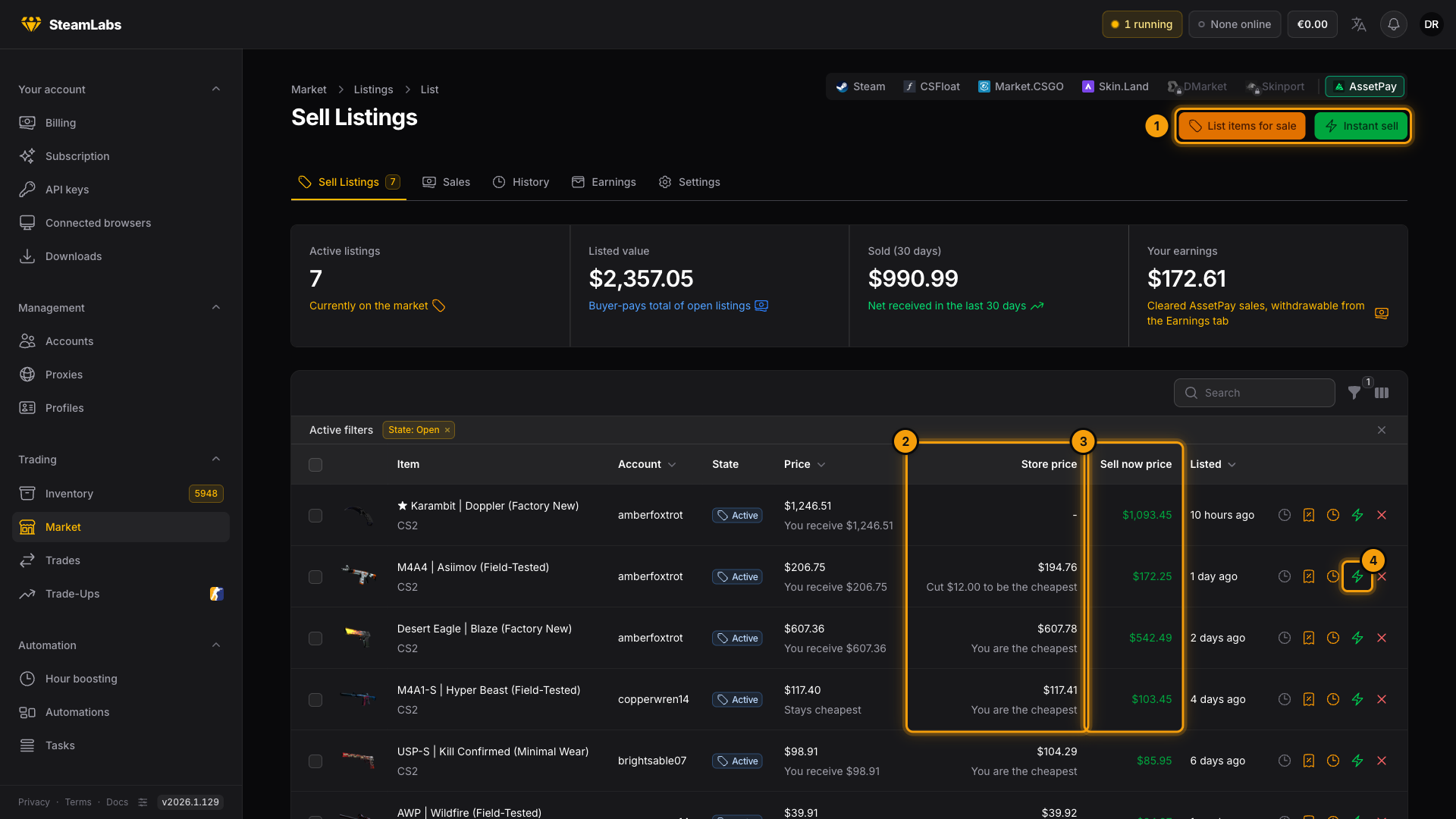
- List items for sale and Instant sell open Inventory with AssetPay already picked.
- Store price is what the item costs on AssetPay's store. The line under it says whether your listing is the cheapest there, or how much to cut to get there.
- Sell now price is what AssetPay would pay you for the item right now.
- Cash out instead takes the Sell now price and removes the listing. To cash out many listings at once, select them and use the bulk action.
A listing that follows the store price says Stays cheapest under its price. Doppler knives show no store price, because it depends on the phase.
When someone buys a listing, SteamLabs sends them the item. The buyer has 60 minutes to accept the trade offer. If they do not, the offer is withdrawn and the listing goes back up.
Changing the price
Change price on a listing shows both prices.
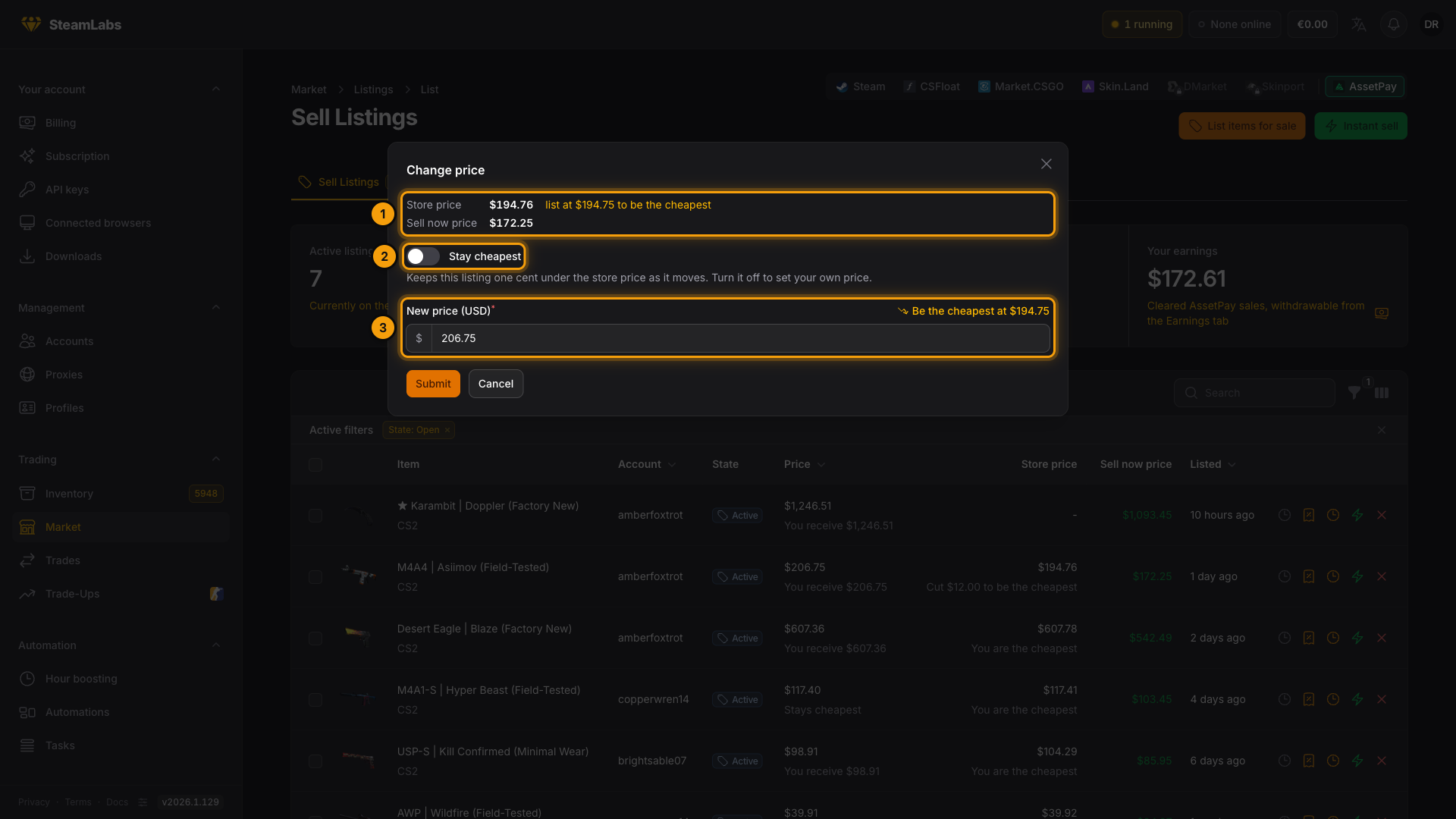
- The Store price and the price to list at to be the cheapest, then the Sell now price.
- Stay cheapest hands the price over to SteamLabs. Turn it off to set your own.
- Type the new price in USD, or in your display currency. Be the cheapest at fills in the cheapest price for you.
Stay cheapest
Stay cheapest reprices a listing every few minutes, so it stays one cent under the store price as that price moves, down or back up. It never goes below the Sell now price. If that floor holds it above the store price, the listing shows Held at the Sell now price.
It is on by default when you pick List as the cheapest. Setting a price by hand turns it off. To turn it on or off for many listings at once, select them and use the bulk actions.
Price history
The clock icon on a listing opens its history, with a chart of the last week.
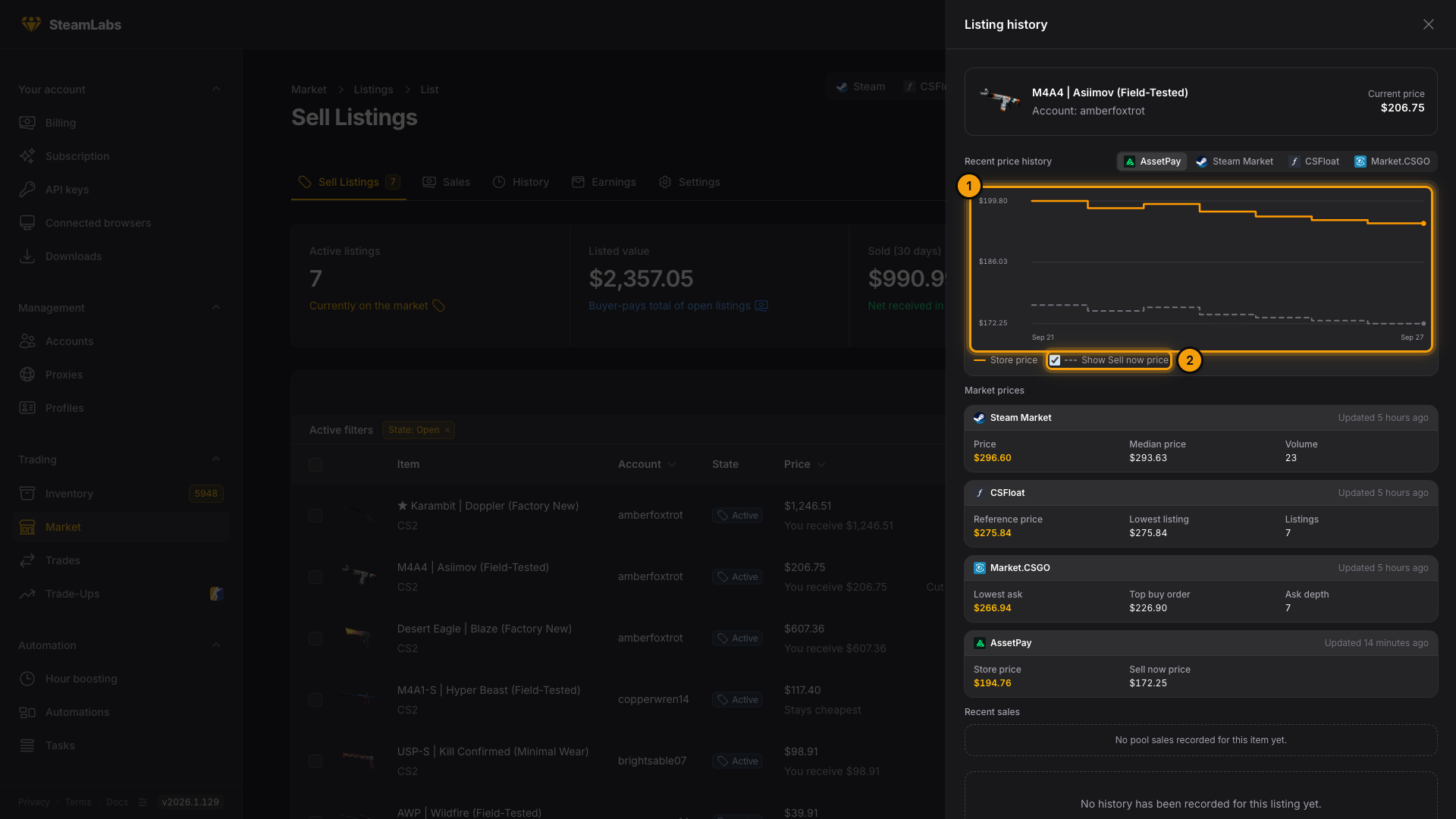
- The chart shows the store price by default.
- Tick Show Sell now price to draw the Sell now price under it.
Market prices below the chart list both AssetPay prices next to the other markets.
Instant sell if unsold
On Settings, turn on Instant sell listings that do not sell to let old listings sell themselves at the Sell now price. You set:
- Default for new listings, in days. You can change or clear it per listing.
- Only when AssetPay pays at least, so cheap items stay listed.
- Apply the default to my current listings, for listings you already have.
The check runs hourly. Items AssetPay is not buying at that moment stay listed.
The Instant sell column on Sell Listings shows each listing's deadline. It is hidden by default. Turn it on from the column picker above the table.
Sales
Every sale lands on Sales, whether it came from Sell now or a listing.
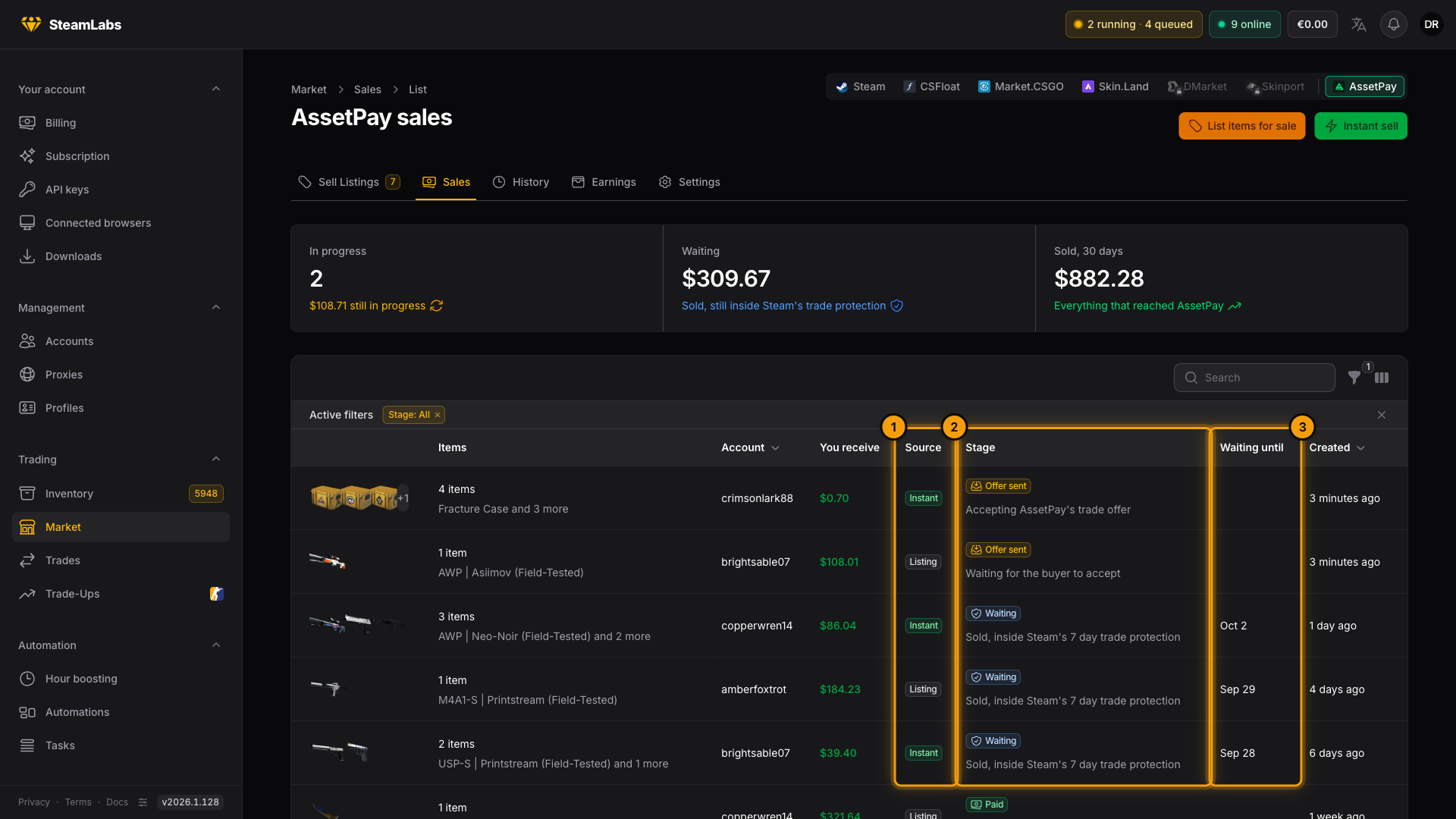
- Source is Instant for Sell now and Listing for a sold listing.
- Stage shows where the sale is.
- Waiting until is when Steam's hold ends and the money clears.
| Stage | What it means |
|---|---|
| Queued, Sending | SteamLabs is starting the sale |
| Offer sent | A trade offer is out. On Sell now, SteamLabs is accepting it. On a listing, the buyer has to accept it |
| Waiting | Sold, inside Steam's 7 day trade protection |
| Paid | Cleared into your earnings |
| Declined, Canceled, Failed | The trade did not happen. You keep the items |
| Reversed | Steam reversed the trade. You are not paid for it |
Cashing out
Everything you earn, from every account, collects on the Earnings tab.
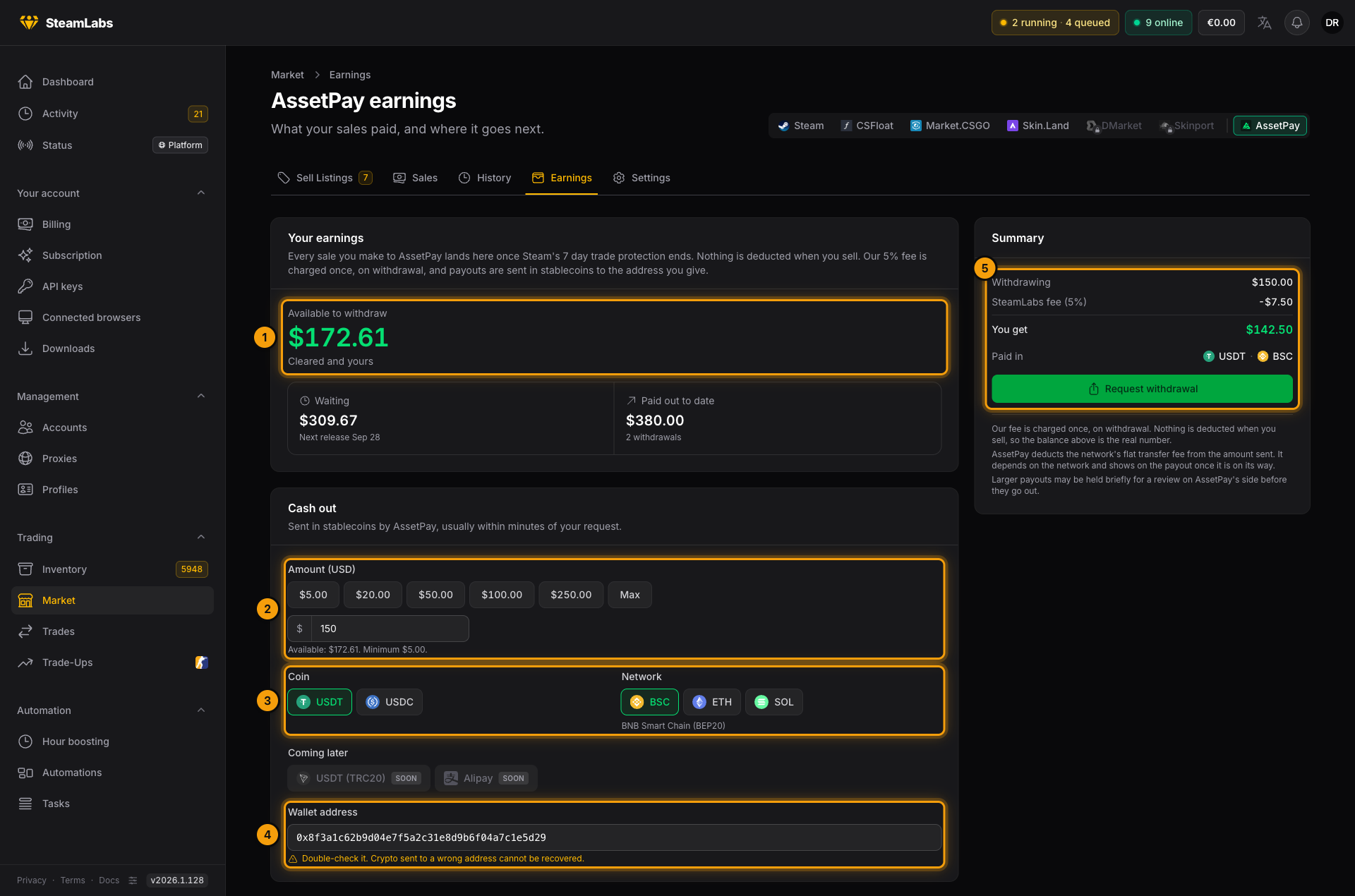
- Available to withdraw is money that cleared. Waiting is still in Steam's hold.
- Enter the Amount. The minimum is $5.
- Pick the Coin (USDT or USDC) and the Network (BSC, ETH, SOL, or TRON). Tron (TRC20) pays out in USDT only.
- Paste your Wallet address on that network.
- Check the Summary and press Request withdrawal.
SteamLabs takes a small fee when you withdraw. Nothing is taken when you sell, so the balance you see is the real number. AssetPay also deducts the network's flat transfer fee from the amount sent. The Summary shows that fee for the network you picked, so You get is what actually arrives. BSC and Solana are the cheapest; Tron has the highest fee of the four.
Payouts are automatic and usually arrive within minutes. Larger amounts can take a bit longer, since AssetPay may review them first. Payout history below the form shows every withdrawal as it moves along, with its transaction and a link to it on the network's explorer. You get a notification when a withdrawal arrives, or when it fails and the amount comes back to your balance; both are under Notifications in your profile, alongside Discord and Telegram.
Alipay is coming later.
Good to know
- Reversals. If Steam reverses a trade, the sale shows Reversed and pays nothing. If the money had already cleared, it comes back off your balance, even below zero.
- Deleting accounts. An account that delivered a listing sale cannot be deleted until that sale's 7 day hold ends. SteamLabs has to keep watching it for a reversal.
- Limits. Instant selling has a daily limit and a cap on sales waiting to be accepted. The modal tells you when you hit one.
- API. Listings, sales, earnings, and payout history are on the API. Requesting a withdrawal is dashboard only.