Getting Started
Proxies
Add your own proxies, test them, group them, and choose how accounts log in through them.
Every Steam login goes through a proxy. An account with no usable proxy does not sign in.
Open Proxies under Management to add, test, and group them. Quick start is the short version of the first five minutes. This page is the rest.
Shared pool vs your own
Until you add proxies, your accounts log in through a pool shared with every other SteamLabs user. That is fine for trying the product. It is shared, and it stops at 50 accounts. Past that, account tasks fail until you add your own.
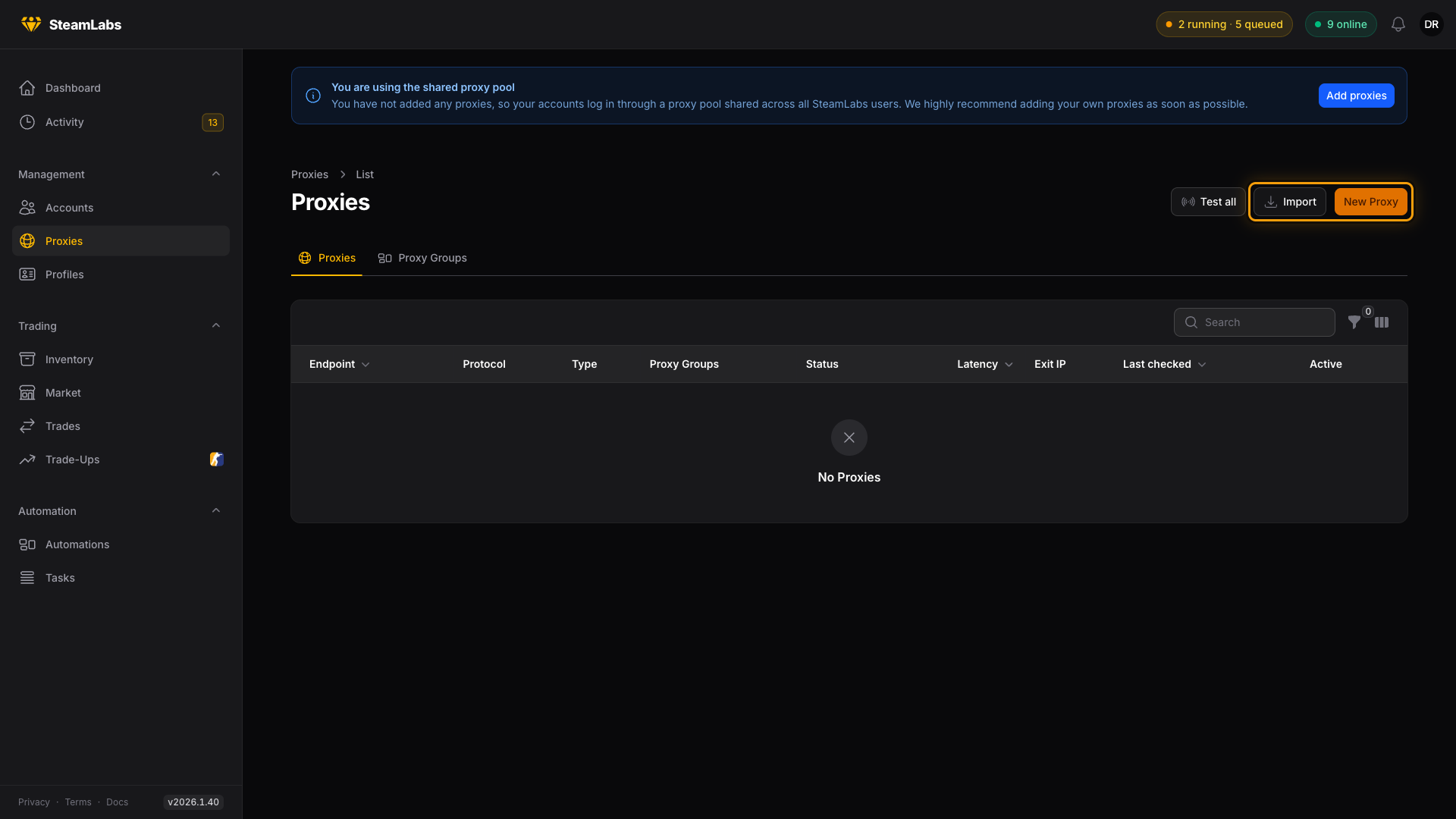
Once you add your own proxies, accounts stop using the shared pool. Unassigned accounts use your pool instead.
Where to get proxies
We recommend Webshare. Paid HTTP or SOCKS5 proxies from a provider like that are what SteamLabs expects.
How you use them is up to you:
- A list of static proxies. Export the list from Webshare, import it here, then pin a proxy (or a group) to each account when you want that account to keep one IP.
- A rotating endpoint. One host and port whose provider changes the exit IP. Import that single endpoint and leave accounts on your pool, or pin it to the accounts that should use it.
Both work. Pick static when an account should keep one IP. Pick rotating when you just need coverage and do not care which IP comes out.
CSFloat, Market.CSGO, DMarket, and Skinport are the exception: they need a dedicated static proxy. Skin.Land does not. See Connecting a marketplace.
Add proxies
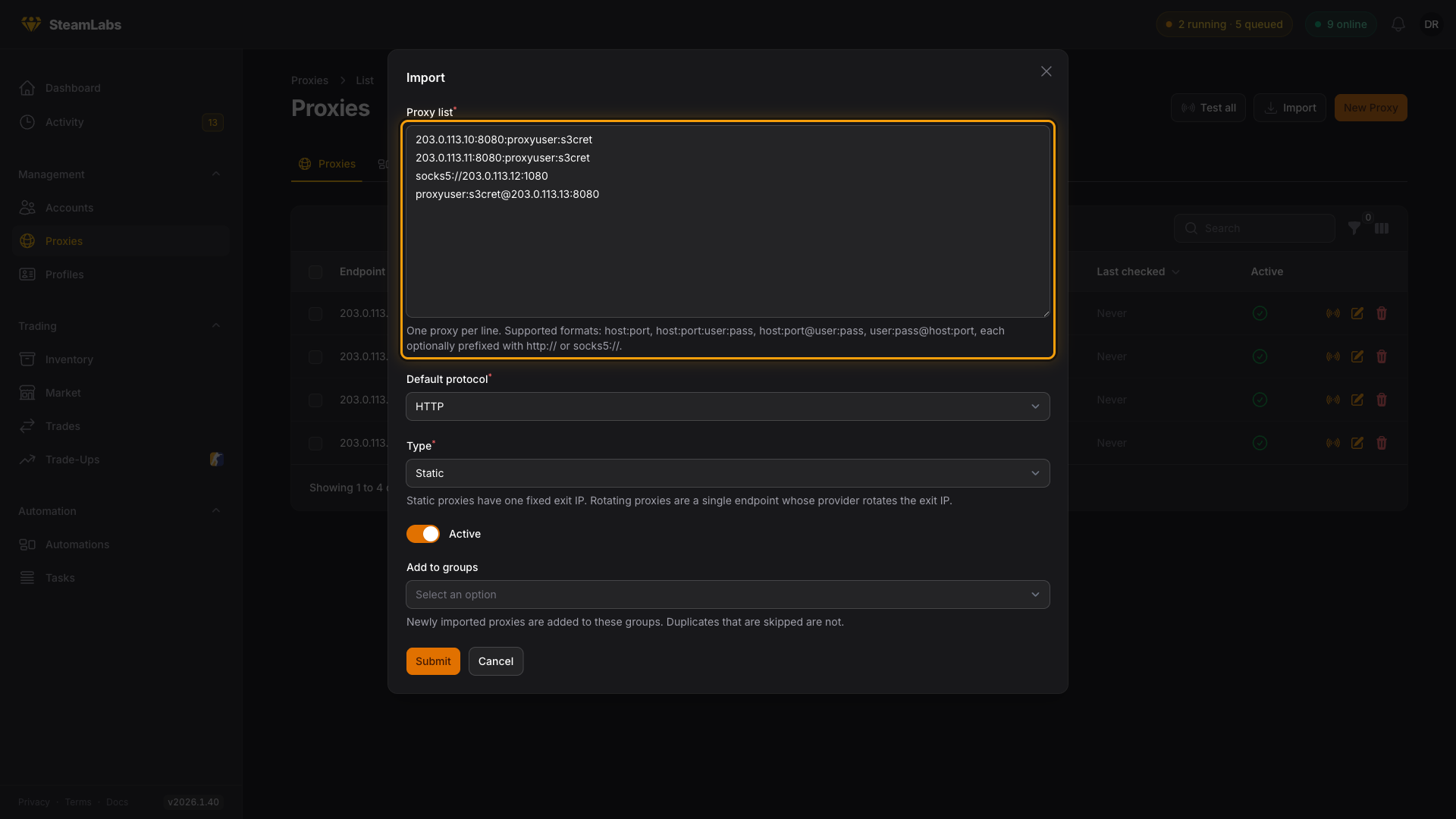
Use New Proxy for one, or Import to paste a list. Import takes one proxy per line:
host:port
host:port:user:pass
host:port@user:pass
user:pass@host:port
Each line can start with http:// or socks5://. Lines without a prefix use the Default protocol in the modal. Set Type to Static or Rotating to match what you pasted. Duplicates you already own are skipped. You can add the new rows to groups in the same modal.
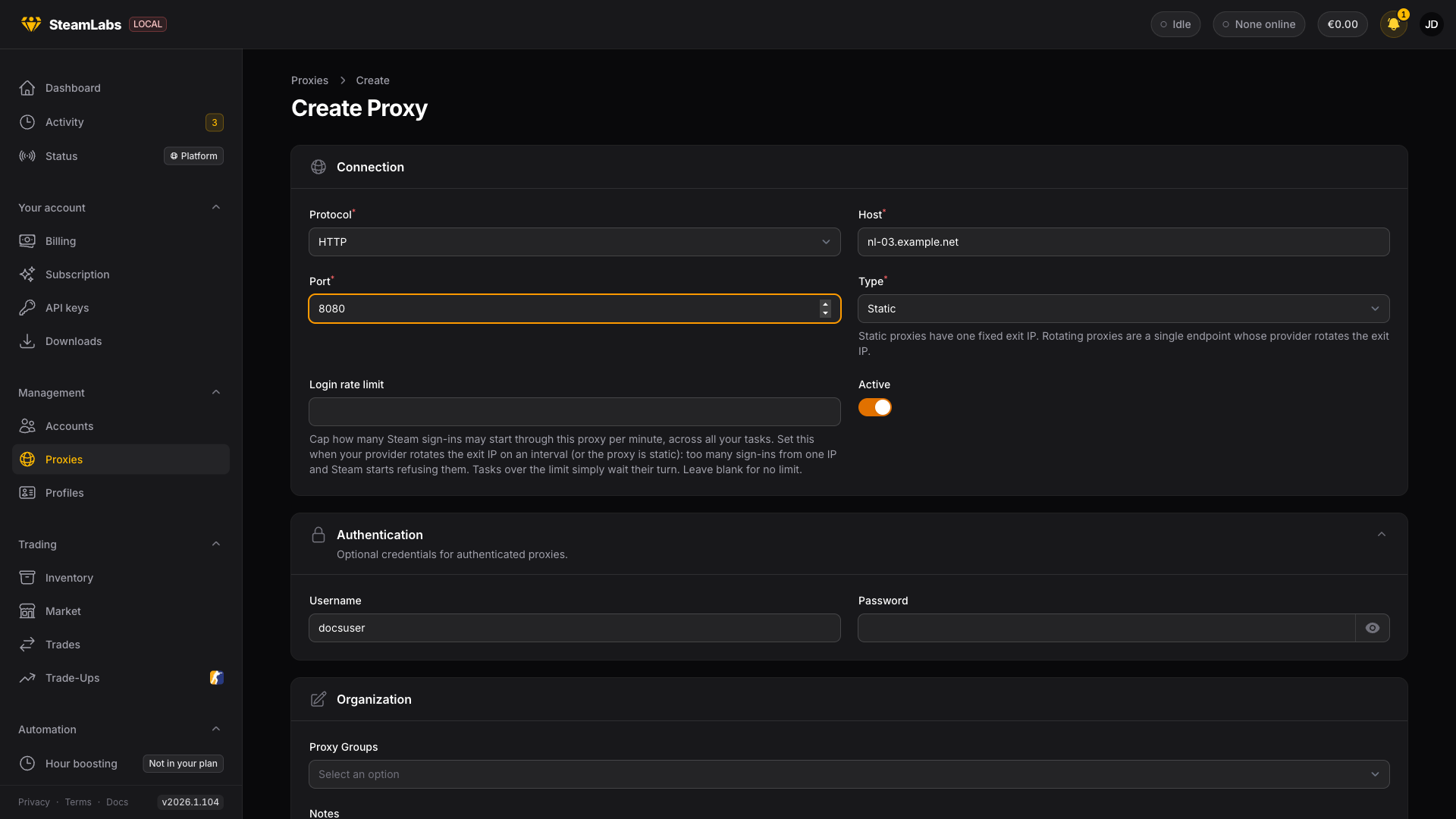
New Proxy is the same fields one at a time: protocol, host, port, type, optional username and password, optional login rate limit.
IP whitelisting
Some providers require you to whitelist the IPs that connect to your proxies. SteamLabs connects to your proxies from our worker servers, so those are the IPs to add.
Open Worker IPs on the Proxies page for the current list and add every IP on it. Your accounts can run on any worker. Miss one and only the accounts on that worker fail to connect, which is easy to overlook.
Test them
New proxies land as Untested. Test on a row, Test selected, or Test all queues a check. Workers report latency, the exit IP, and whether Steam is reachable.
| Status | Meaning |
|---|---|
| Untested | Never checked. Still used for logins. |
| Checking | A check is running. |
| Healthy | Last check reached Steam. |
| Unreachable | Could not connect. |
| Steam Blocked | Connected, but Steam refused it. |
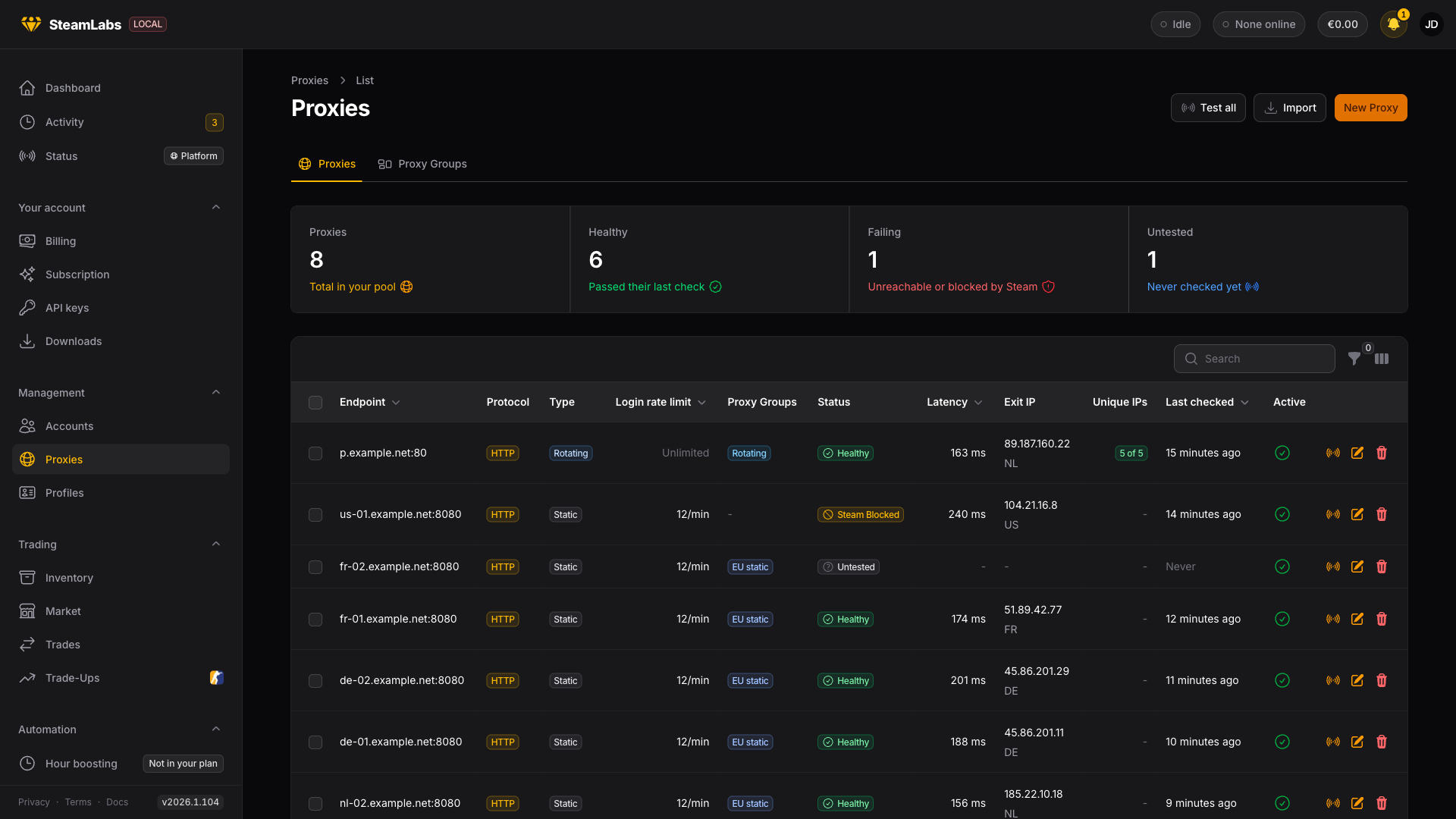
A check on a rotating proxy samples several connections and shows Unique IPs. If you marked it rotating but every sample came back on the same IP, the list flags that. Set a Login rate limit so Steam sign-ins pace themselves instead of stacking on one address.
Static or rotating
Set Type when you add them.
- Static: one fixed exit IP.
- Rotating: one endpoint, the provider rotates the exit IP.
Login rate limit caps how many Steam sign-ins may start through that proxy per minute, across all your tasks. Tasks over the limit wait their turn. Leave it blank for no cap. Use it on static proxies, and on rotating ones that only change IP on an interval.
Groups
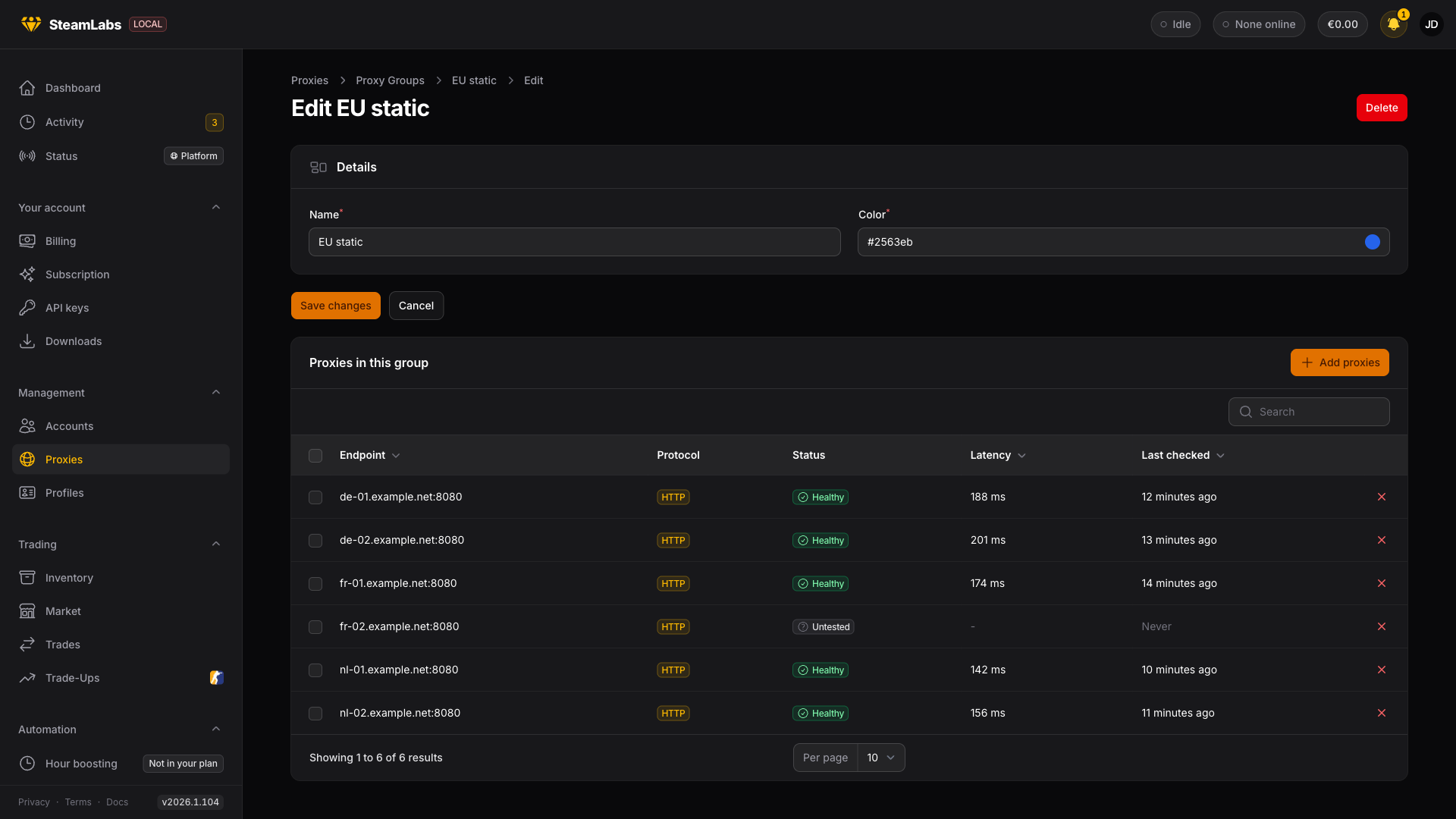
Groups are named sets you can assign as one unit. A proxy can sit in several groups.
On Proxy Groups, create a group, open it, then Add proxies. Deleting a group keeps the proxies. Accounts that used only that group fall back to your pool.
Assign to accounts
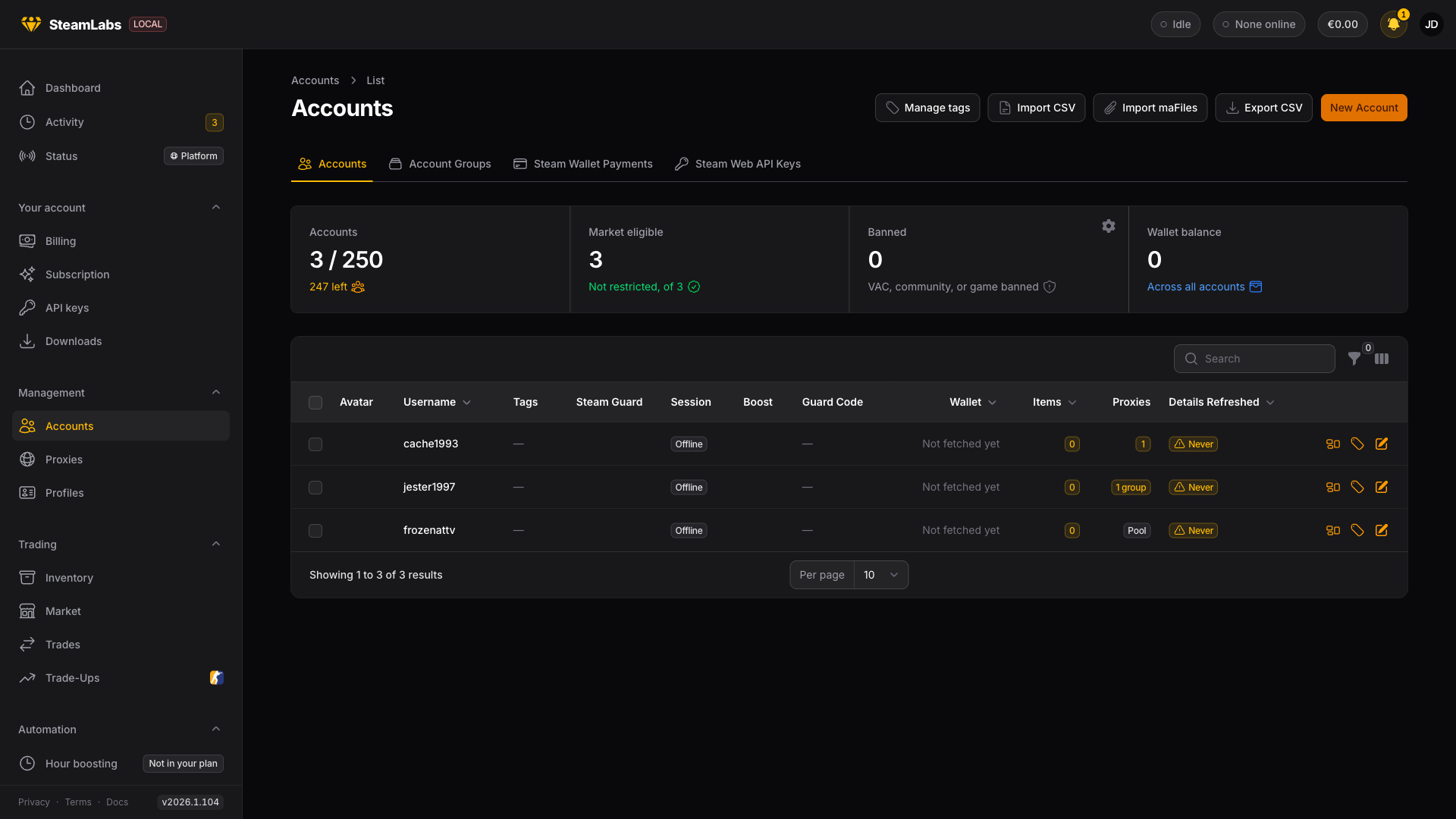
Leave an account unassigned and it logs in through your whole pool (or the shared pool while you have none). Pin a proxy or a group when you want that account to use only those.
You can also link proxy groups on an Account group. Every account in that group, including ones you add later, uses those proxy groups. It is the same as pinning the groups on each account. Pins on the account itself still apply, and the two sets are combined. Moving an account out of the group drops the group's proxies. Its own pins stay.
Pinned means pinned. If every assigned proxy is unusable, the login is refused. It does not fall back to the rest of your pool.
Do this from the account page (Assigned proxies and Proxy groups), from Account Groups (the Proxy groups field), or in bulk on Accounts:
- Assign proxies pins the same selection to every selected account
- Distribute proxies gives each account its own proxy from the selection
- Assign proxy groups pins groups instead
- Clear assigned proxies removes pins and groups on the account. Links on the account group stay.
Marketplaces
CSFloat, Market.CSGO, and Skinport will not connect without a dedicated static proxy: one static proxy used by that account and no other. CSFloat and Market.CSGO expect every request for an account to come from the same IP. Skinport treats a new IP as a new device and emails a confirm link that only finishes the sign-in from that same address.
Skin.Land can use a dedicated proxy but does not require one.
The checklist and the rest of the connect flow live on Connecting a marketplace.