Explained
Profiles
Build a library of profile presets, organize them into groups, and apply them in bulk on all your accounts with one Set Profile task.
A profile is a saved preset: profile name, custom profile URL, picture, description and country. Profiles live in a library under Profiles in the Management group, so you never have to type a profile into a task by hand. Generate a batch, put it in a group, and one Set Profile task applies them in bulk, giving every selected account its own profile.
The bulk flow
- Generate profiles with Generate with AI or Generate random, straight into a group.
- Review them on the Profiles tab. Edit or delete the ones you do not like.
- Create a Set Profile task, choose Pick from a profile group, and select your group and accounts.
- Every selected account gets a different profile from the group, least-used first.
The rest of this page covers each piece.
The profile library
Each profile holds five fields. Empty fields are fine: a Set Profile task only changes what the profile actually carries, and leaves the rest of the account's Steam profile alone.
| Field | Applied as |
|---|---|
| Profile name | The account's persona name, 2 to 32 characters |
| Custom profile URL | The steamcommunity.com/id/ slug. Letters, numbers and underscores, 3 to 32 characters. Applied only the first time this profile is used. Later applies leave each account's current custom URL alone. If the slug is taken on Steam, the account gets a numbered variant of it |
| Avatar | The profile picture. JPEG, PNG, or GIF, at least 184x184 pixels, up to 1 MB |
| Summary | The description shown on the account's Steam profile page |
| Country | The profile's country flag |
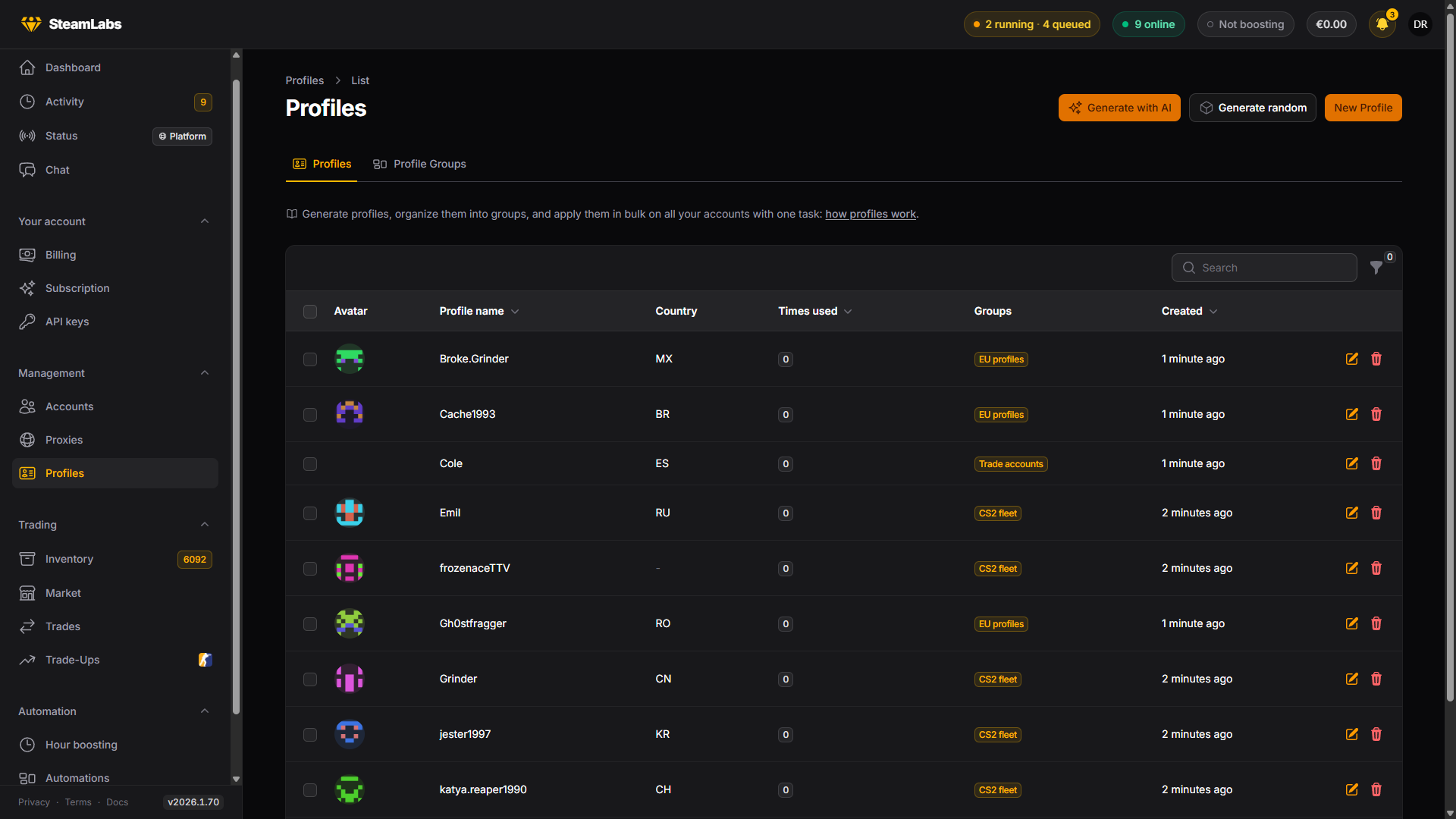
New Profile creates one by hand. Most of the time you will generate them instead.
Every profile tracks a Times used count: how often a task has handed it out. The count is what "least-used first" sorts on, and Reset use count (per profile, per selection, or per group) sets it back to zero when you want a pool to start fresh.
The cards above the list count your library by that number: Unused, Used once and Used 2+ times. Click a card to filter the list to those profiles, or use the Times used filter. A group's page shows the same cards for its members, and the Profile Groups tab shows them as columns.
Profile groups
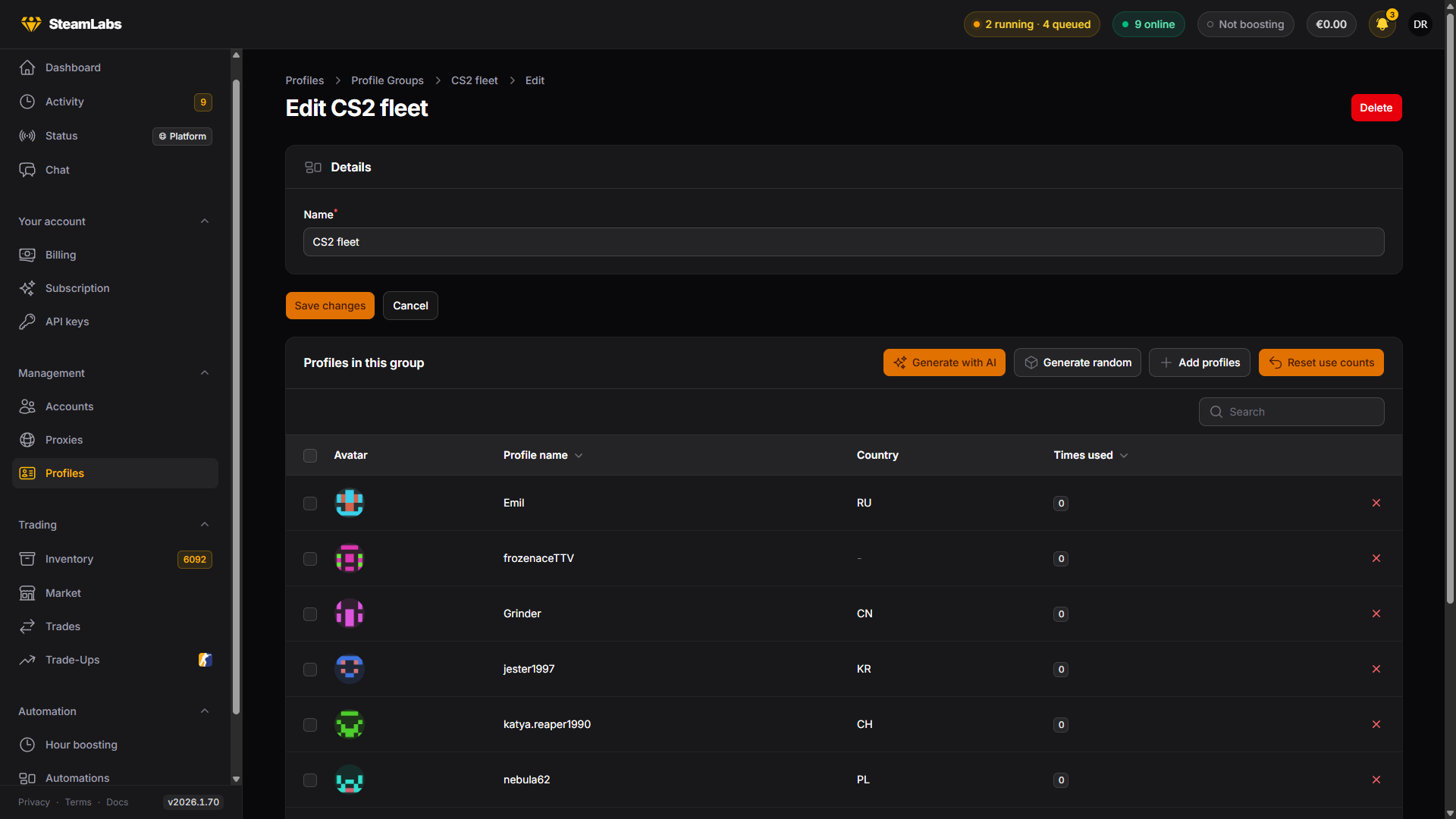
Groups make a set of profiles selectable as one pool. A profile can be in any number of groups, so groups double as tags: "EU profiles", "anime avatars", "used for the CS2 fleet".
On the Profile Groups tab, open a group to manage its members: Add profiles attaches existing profiles, and both generate buttons on the group page drop their output straight into that group. Deleting a group only removes the group itself, its profiles are kept.
Generating profiles
Two generators fill your library, both from the Profiles page or from a group page. Generation runs in the background and profiles appear in the list as they are created.
| Generate with AI | Generate random | |
|---|---|---|
| Names and summaries | Written by AI, steerable with a prompt | Built locally from wordlists and patterns |
| Avatars | AI images, optional style hints | Simple geometric avatars |
| Cost | Uses your monthly allowance first, then your balance at the shown per-profile price | Free, no limit |
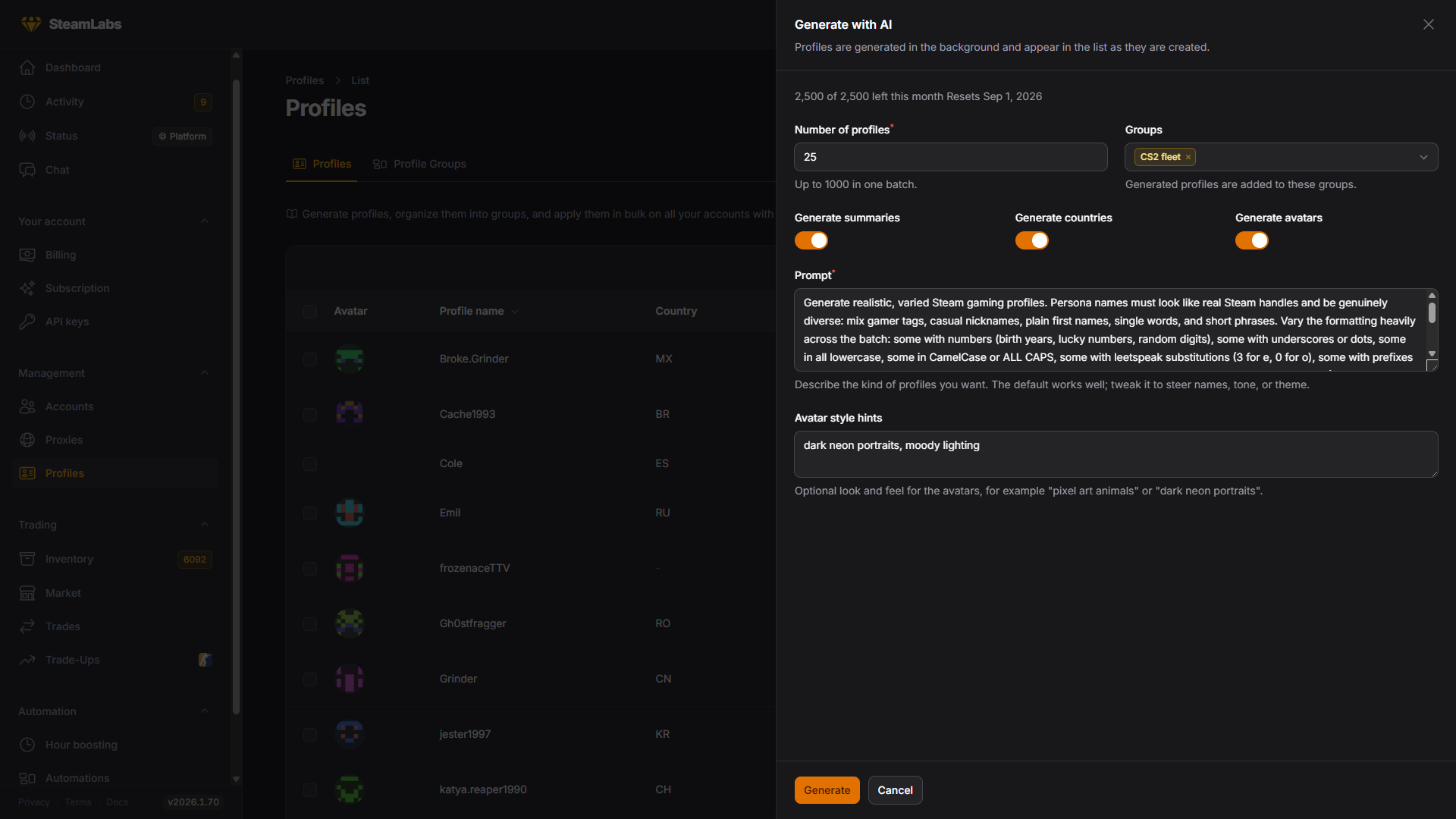
Both forms take a count, the groups to add the batch to, and toggles for whether to include summaries, countries, custom profile URLs and avatars. Random summaries are short casual bios, and some profiles stay blank on purpose, like real ones. Custom URLs are unique inside your library, but another account on Steam can already use one. The Set Profile task handles that for you: it tries a couple of numbered variants of the slug (nightowl becomes nightowl42), and if none is free the account keeps its current custom URL while the rest of the profile still applies. The task result shows which URL the account ended up with.
For AI generation, the Prompt steers names, tone and theme, and Avatar style hints set the look of the pictures, for example "pixel art animals". The form shows what is left of your monthly allowance and when it resets. If a batch goes beyond that allowance, it shows exactly how many profiles are paid and the maximum amount deducted from your balance. You must confirm that amount before generation starts.
Setting profiles in bulk
Create the task from Tasks → Create tasks (pick your accounts, then Set Profile under the Profile group), or select accounts on the Accounts page and use Create task. The Profile source choice decides where each account's new profile comes from:
| Mode | What each account gets |
|---|---|
| Type the profile in | The exact values you type into the task, same for every account |
| One profile from my library | One saved profile you pick, same for every account. The custom URL still goes to the first unused apply only |
| Pick from a profile group | Its own profile from the group, least-used first |
Group mode is the bulk one. Each account in the batch gets a different profile until the group runs out, so a group with at least as many profiles as accounts gives every account a unique identity.
Allow already used profiles decides what happens when the group is smaller than the selection:
- Off (the default): only never-used profiles are handed out, each at most once. Accounts are skipped once the group runs out of unused profiles.
- On: the group wraps around, least-used first, so no account is skipped but some profiles are worn more than once.
Fields a profile leaves empty keep the account's current values, so a name-only profile changes the name and touches nothing else. New accounts that have never saved a Steam profile get theirs initialized by the same task.
Custom URLs
A custom URL can belong to only one account on all of Steam. When the slug a task asks for is taken, the task tries two numbered variants (nightowl42, then a longer number). If none is free, the account keeps its current custom URL and the rest of the profile still applies, so the task finishes instead of failing. The task's Profile section shows the URL the account ended up with, and why it differs from the one you asked for.
Steam also limits how often one account's profile can change. After several saves on the same account in a short time, it refuses further changes for a few hours, and the task fails with a message saying so. Wait a few hours before running Set Profile on that account again.
Profile colour
Steam's Profile settings also have a colour theme (Default, Summer, Midnight, Steel, Cosmic, Dark mode). That is a separate chip from the name and picture, and it is a separate task: Set Profile Theme, in the same Profile group. Pick one colour for every account, or tick a subset and let each account draw one at random.