Market
Overview
How the Market area works and how to sell items on Steam, CSFloat, Market.CSGO, Skin.Land, Skinport, DMarket, and AssetPay.
SteamLabs can sell your items on Steam, CSFloat, Market.CSGO, Skin.Land, Skinport, DMarket, and AssetPay. Steam, CSFloat, Market.CSGO, Skinport, and DMarket are listing venues: you pick a price, the item sits until a buyer takes it. Skin.Land is a buyer of record: it quotes a fixed price and buys outright. AssetPay does both, and pays out to crypto with no extra account to create. This page covers what they share. The per-marketplace pages cover what does not.
Where selling lives
Market sits in the Trading group. The chips in the page header switch marketplace, and each one has its own tabs:
| Marketplace | Tabs |
|---|---|
| Steam | Sell Listings, Buy Orders, History |
| CSFloat | Listings, Sales, History |
| Market.CSGO | Sell Listings, Sales, History |
| Skin.Land | Sales |
| Skinport | Listings, Inventory, History |
| DMarket | Listings, History |
| AssetPay | Sell Listings, Sales, History, Earnings, Settings |
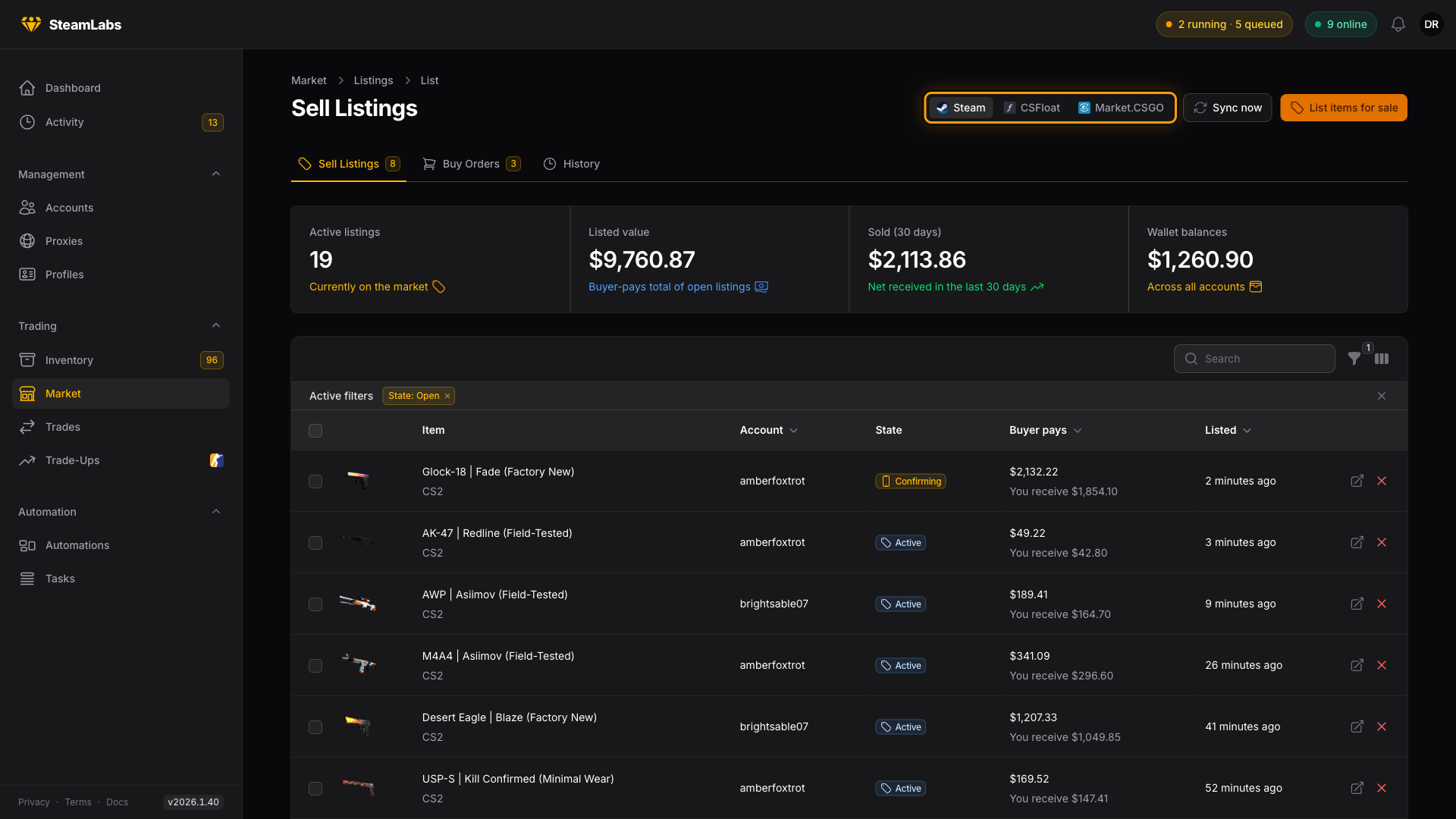
For one account, open it and go to the Listings tab. It shows that account's listings per marketplace (Steam, plus every marketplace it has listed on) and its Steam buy orders, with the same filters and actions as the Market pages. The badges count what is open right now.
Listing items
Selling always starts on Inventory, not in Market. Select the items you want to sell, then press Sell items in the selection bar at the bottom.
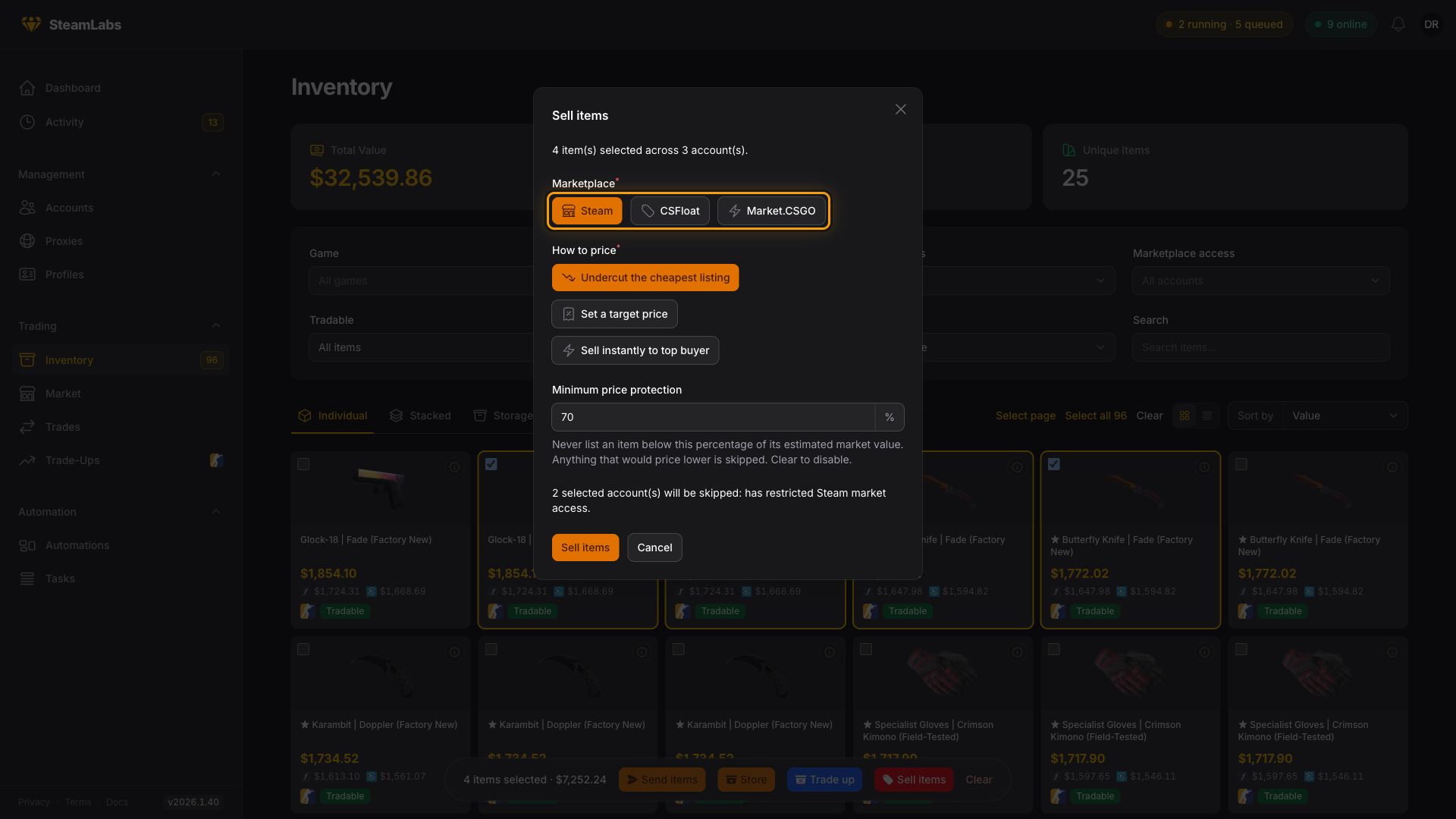
The modal opens on Steam, so pick your marketplace first. Then pick how to price:
- Steam: Undercut the cheapest listing, Set a target price, Sell instantly to top buyer
- CSFloat: Undercut lowest, Percent of reference
- Market.CSGO: Undercut lowest ask, Percent of reference, Top bid (instant sale)
- Skin.Land: no price to pick. It buys the items at its own quote. See Skin.Land.
- Skinport: Undercut suggested, Percent of suggested, Exact price. Prices are in euros. See Skinport.
- DMarket: Undercut lowest, Percent of reference, Instant sell, Exact price. CS2 and TF2 only. See DMarket.
- AssetPay: List as the cheapest (the default), List above the Sell now price, List at a share of a market price, List at my own price, Sell now. CS2 only. See AssetPay.
Minimum price protection defaults to 70%. Anything that would price below that share of the item's estimated value is skipped instead of listed.
Accounts that cannot list are skipped with the reason shown in the modal, for example 2 selected account(s) will be skipped: has restricted Steam market access.
Listing states
| State | Meaning |
|---|---|
| Confirming | Waiting on the mobile confirmation |
| Active | Live on the marketplace |
| On hold | Steam is holding it |
| Sold | Someone bought it |
| Canceled | You delisted it |
| Removed | It disappeared from the marketplace with no reason given |
The first three count as open, and only open listings can be repriced or delisted.
Selling on a schedule
For rules instead of hand-picked items, use the Sell on Market task on Tasks → Create tasks. It takes the same marketplace and pricing options, plus Item conditions (game, price range, float, item type, origin) and Max items per account.
Minimum price and Maximum price under Item conditions choose which items get listed, by their estimated value in USD. They are not the price the items are listed at.
Float limits the task to CS2 items whose paint wear sits between Minimum float and Maximum float (0 to 1). Items with no float are skipped. The condition is hidden when the game filter is only non-CS2 games.
One exact price across many accounts
The task offers a fourth Steam pricing mode, Exact price, that the modal does not: it can put the same typed number on every account in your selection.
Exact price sits in the mode row from the start but stays greyed out until the task is pinned to a single item: turn on the Specific items condition and pick one item, and it becomes selectable. One price cannot fit items of different value, so until then the button carries a tooltip saying so.
Because every Steam account has its own wallet currency, an exact price also needs to say which currency it is in. Pick that next to the price, then choose what should happen to accounts that do not match:
| Setting | What happens |
|---|---|
| Convert per account off | Every listing shows exactly the price you typed. Accounts whose wallet is a different currency are skipped and counted. |
| Convert per account on | Nothing is skipped. Each account lists at that value converted into its own wallet currency, so the figures will not be round numbers. |
Minimum price protection does not apply to an exact price. It guards the automatic modes against a thin order book, and there is nothing to guard when you set the number yourself.