库存
概览
所有账号的全部物品集中在一页,以及选中后可以做的五件事。
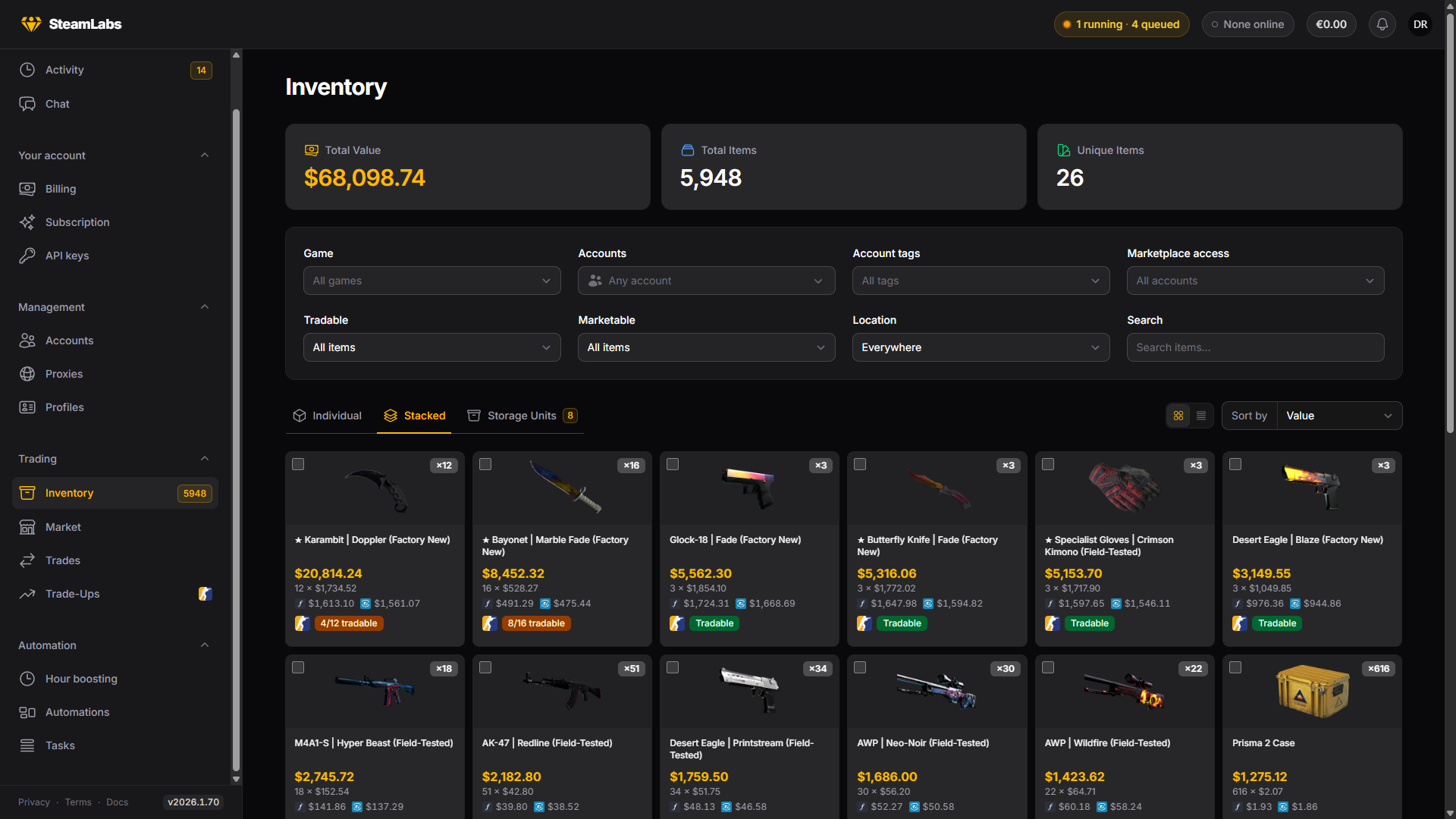
Inventory 位于 Trading 分组,汇总你名下每个账号上的每一件物品。大部分物品操作也从这里开始:出售、发送、存入、使用和汰换,都先在这里选中物品。
物品如何出现在这里
物品不是实时读取的。账号完成一次库存同步后才会出现,而库存同步是 Refresh Details 任务的一部分。账号还没跑过一次时,这里什么都没有。
自动刷新
SteamLabs 可以替你保持库存为最新。在 Inventory 页面点齿轮按钮打开 Inventory settings,然后打开 Automatic refresh。它默认是关闭的。
有两种方式触发刷新,可以只用其中一种,也可以都用:
- Refresh old inventories:账号的库存超过你选的时长(30 分钟到 30 天)后就会刷新。每个账号各自计时,所以一小时前刚被任务刷新过的账号不会被打扰。
- Refresh after these events:只刷新相关的那个账号,在事件发生约 2 分钟后进行。
| 事件 | 何时触发 |
|---|---|
| Incoming trade offer accepted | 发给该账号的报价在 Steam、手机应用或其他工具中被接受 |
| Steam Market buy order filled | 买到的物品进入库存 |
| Steam Market listing ended unsold | 挂单在 SteamLabs 之外被取消或移除,物品回到了库存 |
| FarmLabs drop claimed | 你关联的 FarmLabs 为该账号领取了掉落。只在关联了 FarmLabs 时显示 |
| Items received by a SteamLabs task | 领取每周掉落或服役勋章、兑换军械库物品或从 DMarket 取回物品的任务完成 |
同一账号短时间内的多个事件只触发一次刷新,同一账号通过事件最多每 10 分钟刷新一次。SteamLabs 自己做的事,比如接受报价、从商店购买或汰换,完成时本身就会刷新库存,所以不在列表里。
在 Which accounts 下打开 Only accounts with these tags or groups,可以把自动刷新限定于带有任一所选标签或属于任一所选分组的账号。下方的排除项始终优先:被排除的账号即使符合条件也会被跳过。手动刷新不受这两项影响。
三种视图
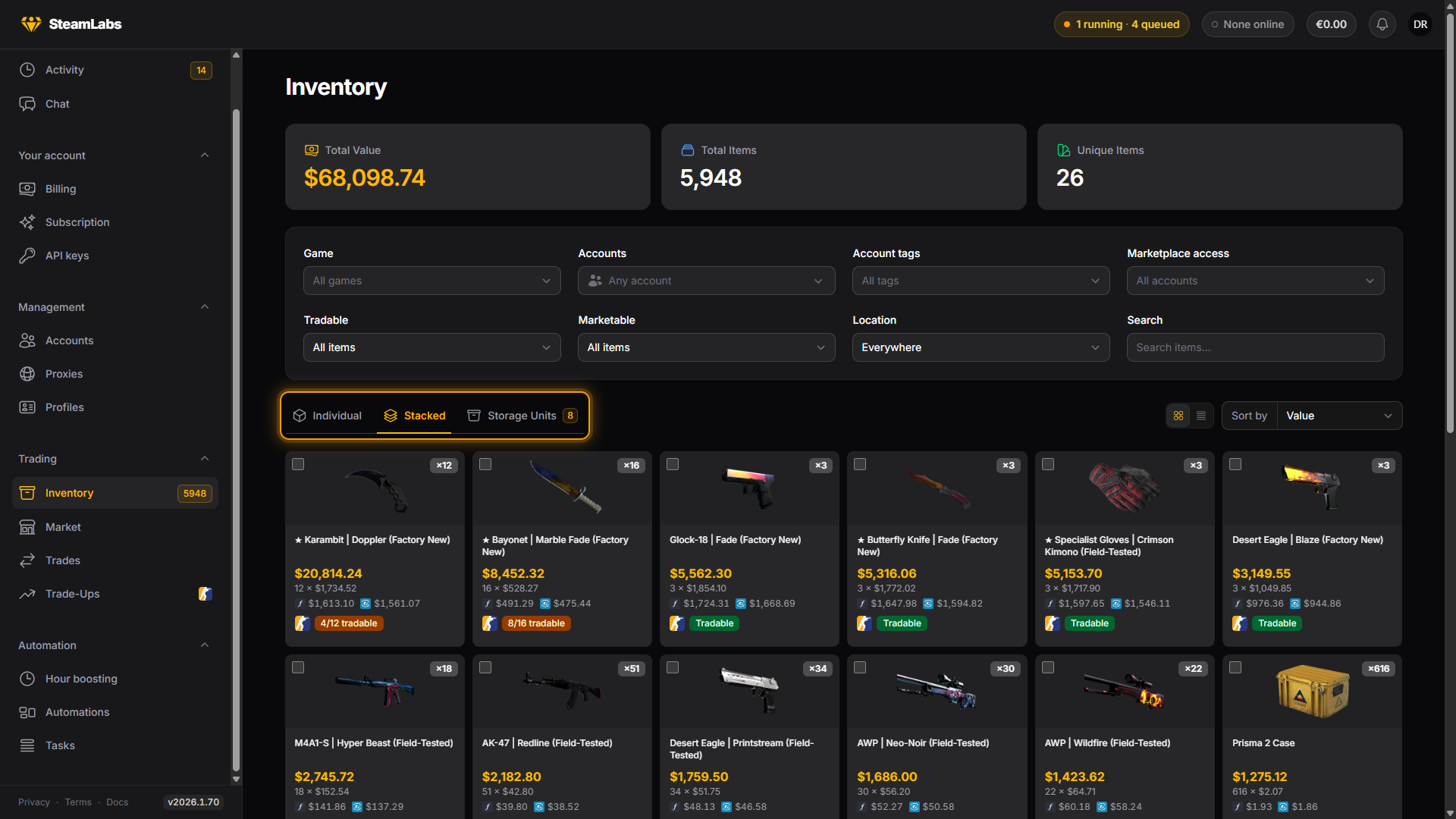
用网格上方的按钮切换视图。
| 视图 | 一条记录代表 |
|---|---|
| Stacked | 一件物品,跨所有账号计数 |
| Individual | 某一个 Steam 资产,在某一个账号上 |
| Storage Units | 一个 CS2 存储单元,不是里面的物品 |
想知道“这种物品我有多少”时用 Stacked。当某一件具体副本很重要时用 Individual,因为只有它能显示磨损和贴纸。存储单元不会作为物品出现在前两种视图里:单元是容器,单独见 存储单元。
每种视图都有 Gallery view 和 List view,以及各自的排序。Stacked 和 Individual 可按价值、名称、数量和最近获得排序,Individual 还增加磨损(从低到高),Storage Units 按装满程度或名称排序。
筛选
筛选行会同时收窄每一种视图:
- Game:CS2、TF2,或普通 Steam 物品
- Accounts 和 Account tags:显示哪些账号的物品
- Marketplace access:只显示当前能在 Steam、CSFloat、Market.CSGO、Skin.Land、Skinport 或 DMarket 上出售的账号上的物品
- Tradable 和 Marketable:包括 Sellable now,表示可上架 并且 所在账号现在真的能上架
- Location:Main inventory、In storage units,或全部
- Search:按物品名称逐词匹配,顺序不限
- Price:搜索框旁边的最低价和最高价,按 Steam 社区市场价格,使用你的首选显示货币。没有价格的物品按
0算。未设置偏好或每日汇率不可用时,按美元输入。
网格上方的统计卡片(Total Items、Unique Items、Total Value、In Storage、Capacity)会跟随筛选,所以也能快速回答“这一批值多少”。
选中物品
点击卡片即可选中。在 Stacked 视图中,你是从这一叠里挑数量,由 SteamLabs 决定用哪些账号上的副本。
Select page 选中当前页的全部。Select all 选中符合当前筛选的全部,但有上限:
| 视图 | 上限 |
|---|---|
| Stacked | 500 叠 |
| Individual | 1,000 个资产 |
超过上限时选择会被截断,并给出提示。收窄筛选后再选,或使用 Tasks → Create tasks 上面向整批账号的版本,那些按规则工作,而不是按物品列表。
有些物品即使看起来被选中了,选择操作也不会带上它们:
- 存储单元里的物品,除了取出以外的任何操作
- 已经在市场上架,或已作为汰换输入占用的物品
- 该操作本身用不了的物品,例如发送时不可交易的物品
选中后可以做什么
页面底部的栏里有五个操作。
| 操作 | 做什么 | 更多 |
|---|---|---|
| Send items | 向你自己的账号、一个交易链接,或按规则发送交易报价 | 交易 |
| Store | 把 CS2 物品存入存储单元 | 存储单元 |
| Trade up | 把符合条件的 CS2 物品做成十件一组的汰换合同 | |
| Sell items | 在 Steam、CSFloat 或 Market.CSGO 上架 | 市场 |
| Use | 消耗军备通行证和 TF2 背包扩展器 |
这些操作都会排队成工作机任务,而不是当场执行。到 Tasks 里跟踪它们。
按钮变灰表示你的套餐不包含该操作。悬停即可看到哪个套餐会解锁它。
物品详情
在任意卡片上点击 View details 可查看完整信息:由哪个账号持有、首次见到的时间、资产 ID,以及 CS2 物品的来源、磨损与外观、图案种子、涂装编号、StatTrak 计数、名称标签、贴纸和挂件。
同一个侧栏还会显示我们跟踪的每个来源的当前市场价格,以及各自的更新时间。
使用物品
Use 在持有该物品的账号上就地使用。两类物品符合条件:CS2 军备通行证(会激活),以及 TF2 背包扩展器和类似的可用商店物品(会应用)。
选中范围内的其他物品会被忽略。存储单元里的物品也会被跳过,因为容器内部无法使用任何东西。