库存
交易
把物品作为交易报价发出,可以手动从选择发送,也可以作为整批账号任务,并在 Trades 页面跟踪每一份报价。
交易把物品在你的账号之间移动,或发给别人。有两种方式会创建报价:Inventory 上的一次选择,以及 Trade Items 任务。两者产生的内容都会出现在 Trades。
从选择发送
在 Inventory 选中物品,然后点击 Send items。这是把一组具体物品送到具体去处的方式。
选择它们去哪里:
- One of my accounts:内部转移。只有我们知道交易链接的账号会出现在列表中
- A trade URL:任意 Steam 交易报价链接,用于 SteamLabs 以外的去处
- Routing rules (spread across targets):一次选择,多个去处,由规则决定。见 路由规则
Auto-accept on the receiving account 默认开启,报价发出后会在接收方排队一个接受任务。这只对你自己的账号有意义,外部对方要在他们那边接受。
Message 是报价上的备注,最多 128 个字符,这是 Steam 的上限。
不可交易的物品会从这次发送中去掉,但不会让发送失败,因为带着它们 Steam 会拒绝整份报价。已经在市场上架或已作为汰换输入占用的物品会留在原地。
在整批账号上发送
若要“把这 400 个账号清空到那一个”,使用 Tasks → Create tasks 并选择 Trade Items。你在那里选中的账号是物品的 来源,任务配置决定它们的物品去哪里。
Simple 接受一个目标(你的账号或一个交易链接),外加可选的 Item conditions:游戏、价格区间、指定物品、物品类型、来源。不设条件就会发送每一件可交易物品。
Advanced 是完整的路由规则列表,与库存弹窗里的构建器相同。
与从选择发送的差别在于物品是什么:选择是你挑好的列表,而任务在运行那一刻按规则匹配物品。所以适合放到计划里定时跑。
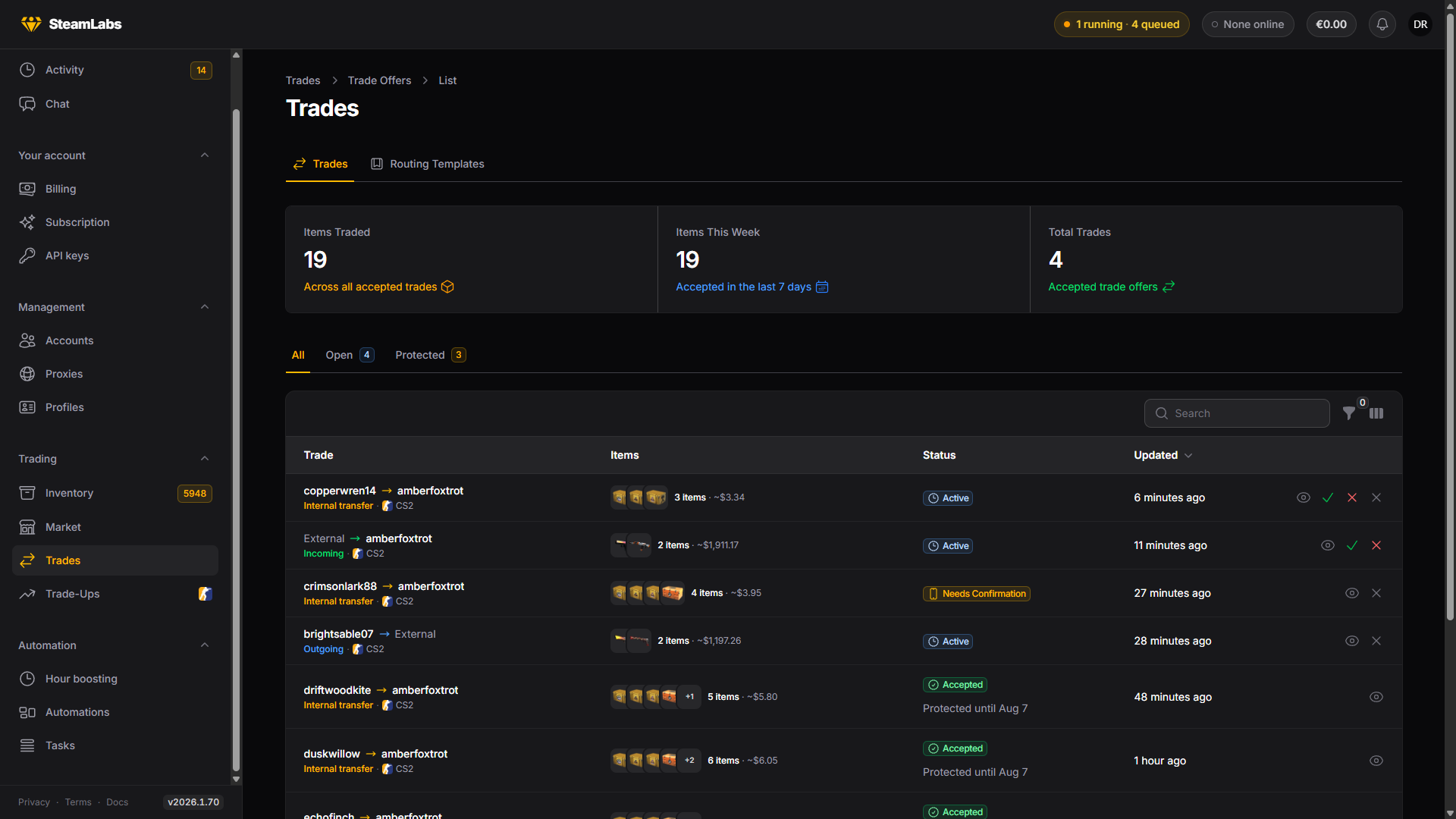
Trades 页面
Trades 位于 Trading 分组,是你的账号发出或收到的每一份报价。三个标签页用来分流:
- All
- Open,仍在等待某一方操作的报价,带数量徽章
- Protected,已接受但仍在交易保护期内的 CS2 交易
可按账号、流向(Incoming、Outgoing、Internal transfer)、状态和游戏筛选。搜索可匹配 Steam 报价 ID、外部对方的 Steam ID,或任一账号的用户名。
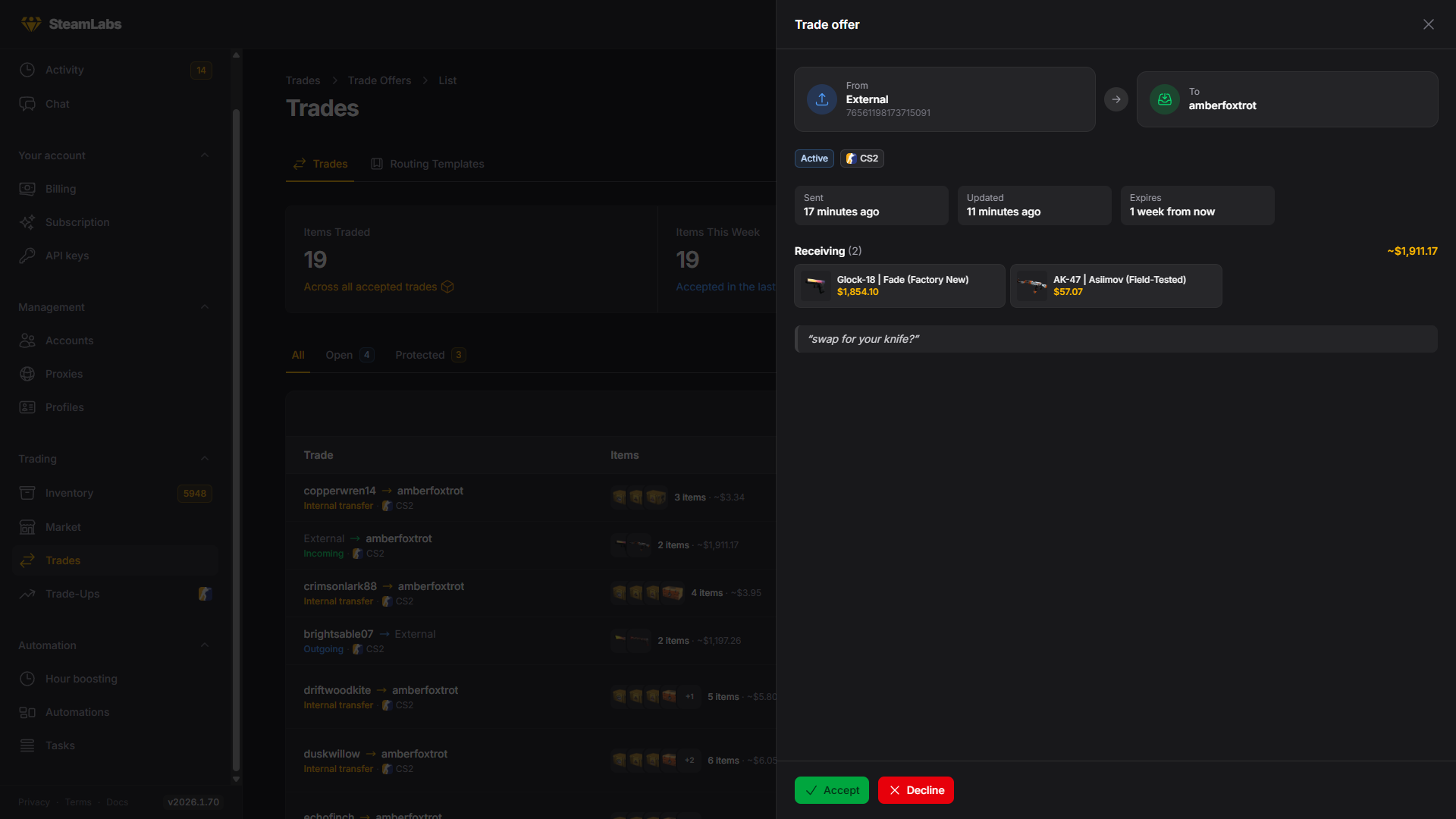
点击一行可查看完整报价:双方物品列表、留言、发出时间和过期时间。只要报价状态允许,接受、拒绝、取消和确认都可以从该行或该侧栏操作。
勾选行,或用表头复选框后再点全选,覆盖当前标签和筛选下的每一页。批量操作对这次选择执行同样的四个动作。行按钮不会显示的报价会被跳过,汇总会说明排了多少、跳过了多少。工作和单行一样,按账号排队。
自动同步
打开 Trading → Settings 可安排交易报价刷新。自动同步默认关闭,需要你开启。
- Only accounts with open trades 刷新有未结束报价、等待确认的报价,以及仍在保护期的交易的账号。
- Open trades, plus occasional checks 再加一层较慢的发现扫描,覆盖其余账号。这是默认的目标模式。
- All accounts 按在线或离线节奏刷新每一个账号。
自动运行会拉取当前全部未结束报价,以及该账号上次成功同步以来已结束的报价,并重叠一小时。第一次运行和每一次手动刷新仍使用更宽的 30 天修复窗口。更早存下来的交易仍会留在历史中。
你可以排除个别账号、标签或账号组。排除条件会合并,且只作用于计划同步,所以手动刷新始终可用。每次运行都会重新解析标签和组成员。
如果只想同步一部分账号,在 Which accounts 下打开 Only accounts with these tags or groups 并选择标签和分组。账号符合其中任意一项即可,排除项仍然优先。
报价状态
state 是 Steam 自己的,所以这些是 Steam 对发生了什么的说法。
| 状态 | 仍未结束 |
|---|---|
| Active | 是 |
| Needs Confirmation | 是 |
| In Escrow | 是 |
| Accepted | 否 |
| Declined | 否 |
| Canceled | 否 |
| Canceled via Mobile | 否 |
| Countered | 否 |
| Expired | 否 |
| Invalid、Invalid Items | 否 |
只有等待你某个账号处理的 Active 报价可以接受或拒绝。你发出的报价在仍未结束时可以取消。你发出且仍处于需要确认的报价可以确认,也就是重试手机确认。
已关闭的报价只有在新的拉取发现 Steam 的说法不一致时才会再变化。
交易保护
CS2 交易会延迟结算。物品会立刻离开发送方,但要等交易结算后才到达接收方,在此之前 Valve 可以撤销。处于该窗口的报价带有 Protected until 徽章,并出现在 Protected 标签页。
这是 Valve 的行为,不是 SteamLabs 的设置。按这个来规划:保护期内的物品还不能使用、出售或发送。