自动化
步骤
节点面板:选择账号、拆分它们、对它们采取行动,以及把结果告诉你自己。
步骤在面板中分为 Accounts、Actions 和 Annotations。大多数作用于到达它们的账号,有一个作用于你的代理。
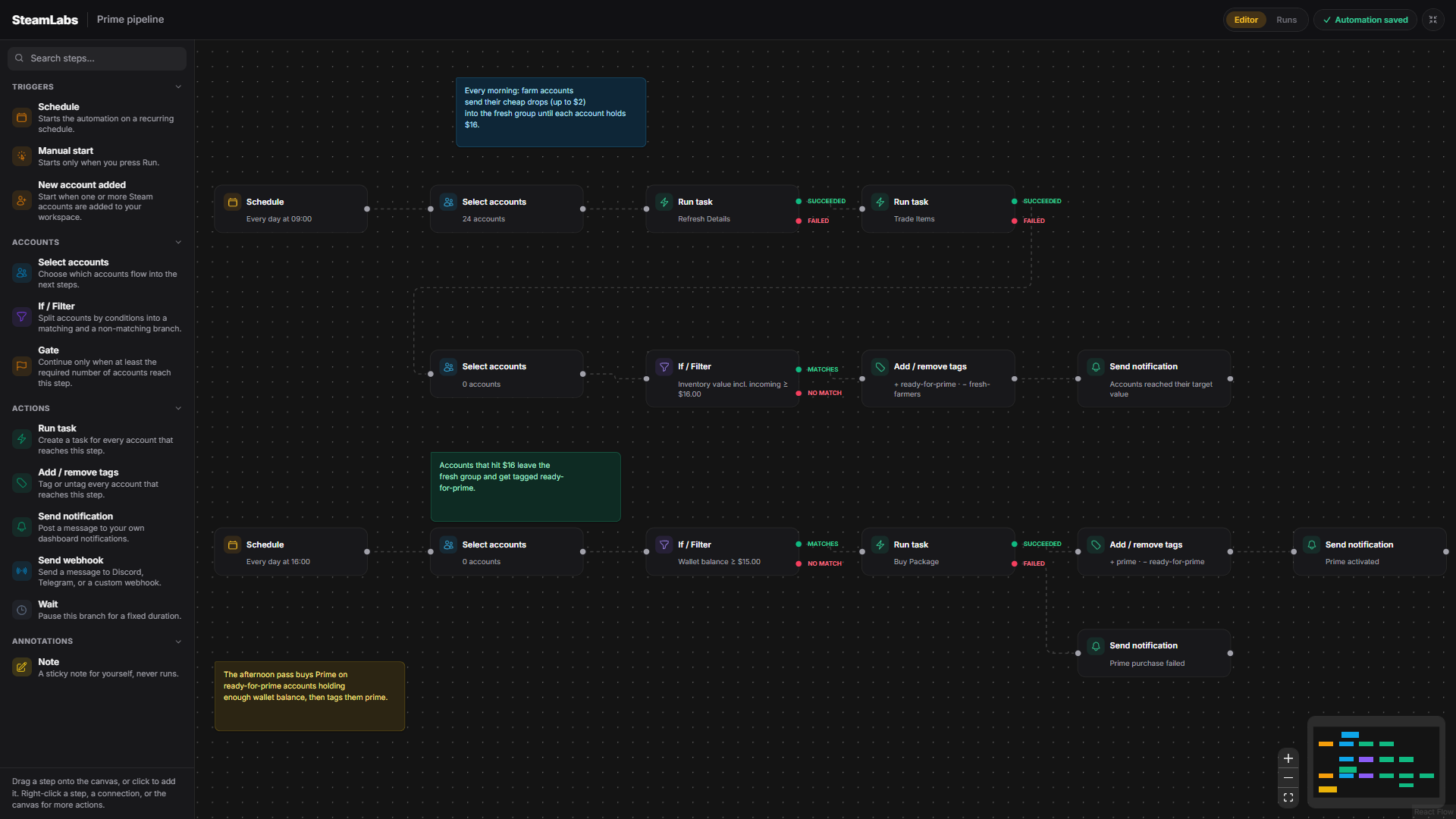
选择和拆分账号
Select accounts
决定哪些账号流入它下面的步骤:全部、一组筛选,或一份手挑列表。Include tags 保留带有其中任一标签的账号。Exclude tags 去掉带有其中任一标签的账号。成员关系在自动化运行时解析。你可以明确包含 Ungrouped 账号。
放在事件触发器后面时,这一步会 替换 触发器交过来的账号。
If / Filter
按条件把进来的账号拆成 Matches 分支和 No match 分支。可以接其中一条、两条,或只接你关心的那一条。没有任何账号的分支不会被执行,它后面的步骤不会运行(也不计入运行的步骤上限)。
条件按区域分组:
| 分组 | 例子 |
|---|---|
| Inventory | 物品数量、指定物品数量、CS2 库存大小、库存价值、含收到交易的价值、CSFloat 和 market.csgo 价值 |
| Storage | 存储单元数量、剩余存储容量、存储中的物品 |
| Ownership | 按 app ID 的游戏拥有、按 package ID 的包拥有 |
| CS2 | CS2 等级、CS2 XP、服役勋章状态、可领取的每周掉落、本周每周掉落是否已领取、军械库积分、军械库刷新时间 |
| Marketplaces | 社区市场权限、Skin.Land 和 Skinport 已连接 / 就绪 / 余额、CSFloat 和 market.csgo 已连接 / 就绪 / 余额 |
| Account and security | 账号组、包含标签、排除标签、钱包余额、External funds used、积分商店余额、手机令牌、Steam Guard、已知交易链接、资料已设置、被封 |
| Activity | 详情已刷新、库存已刷新、积分余额已刷新、External funds 已刷新,都是“最近 N 小时内” |
运算符是“至少”、“至多”、“恰好”、“已启用 / 存在”、“已关闭 / 缺失”,以及两个时间窗口。筛选器上的每一个条件都必须成立,账号才算匹配。
Points Shop balance 条件使用原始 Steam 积分。从未成功刷新过余额的账号不满足余额比较。自动化应当只作用于近期数据时,把它和 Points balance refreshed 一起用。
External funds used 是 Steam 累计真实资金总额(卡、PayPal、paysafecard 等等),不是当前钱包余额。它按美元比较。从未拉取过这个数字的账号不满足比较。自动化应当只作用于近期读取时,把它和 External funds refreshed 一起用。
CS2 inventory size 是做存储工作时该筛的那一个:它统计占用 CS2 库存空位的东西,即散装物品加上存储单元本身,1,000 空位上限作用的就是这个。
Specific item quantity 检查一件物品。从目录里选,或输入它的市场哈希名称(例如 Mann Co. Supply Crate Key)。名称必须完整匹配,大小写不限。用 is at least、is at most 或 is exactly 比较账户持有的副本数。存放在存储单元里的副本也计入,因为账户仍然拥有它们。每一件已同步的副本计为 1,和库存页面的计数方式相同。
CS2 分组和账号页 Games 下的 CS2 页用的是同一份快照。CS2 等级、CS2 XP、服役勋章和军械库积分来自 Fetch Armory Progress。可领取的每周掉落和本周是否已领取来自 Fetch Weekly Drops。从未拉过对应任务的账号不满足比较。服役勋章状态是 已领取、可领取 或 不可用,和页面一致。
Skinport 条件把连接和就绪分开,和 Skin.Land 一样。Skinport connected 只问账号是否已关联。Skinport ready to sell 还要求会话属于该 Steam 账号、出售已打开、有手机令牌,以及一条专用 Skinport 代理。Skinport 余额来自上次同步,以欧元计。
Skin.Land 条件把连接和就绪分开。Skin.Land connected 只问账号是否已关联。Skin.Land ready to sell 还要求会话属于该 Steam 账号、出售已打开,以及有手机令牌,这才是一笔出售真正需要的,所以把出售步骤卡在这一项上。见 Skin.Land。
Skin.Land 余额来自账号上次同步。Skin.Land balance 是总额,Skin.Land locked balance 是仍在 Steam 交易保护中的部分,Skin.Land withdrawable balance 是今天还能提取的。没有 Skin.Land 会话的账号没有余额,而不是余额为零,所以它们在任一方向都不会满足余额比较。
Gate
只有到达它的账号数量至少达到你设定的数字时才继续。低于这个数字,这条路直接结束。
你也可以设一个 maximum。到达门限的账号多于这个数字时,会随机选取这么多个在本次运行中继续。
这就是阻止“找出被封账号,然后通知我”的流程每天早上给你发一条什么都没找到的通知的东西。
对账号采取行动
Run task
为到达它的每一个账号创建一个任务,类型可以是你能手动创建的任何任务类型。
运行会停在这里直到这些任务完成,然后拆分:任务 Succeeded 的账号走一支,任务 Failed 的账号走另一支。把失败分支接到通知,就是不用盯着 Tasks 页面也能发现问题的方式。
Add / remove tags
给到达该步骤的每一个账号打标签或去掉标签。标签可以在这里边输入边创建。
去掉账号当初被选中所依据的标签也没问题。后面的步骤继续作用于到达这一步的账号,而不是重新解析标签。
Set account group
把每一个进来的账号移到一个组或 Ungrouped。账号在移动前被快照,所以即使进来的选择按旧组筛选,后面的步骤仍保持同一批账号。
Wait
把该分支停一段时间,单位可以是分钟、小时或天。可以选择 固定 时长,或一个 随机 范围(最短和最长)。每次运行会在步骤执行时从该范围内重新取值,而不是在你保存自动化时。
运行停在 Waiting,然后自己继续。
用它在本来会叠在一起的步骤之间留空,例如交易后等一小时再检查库存,或错开同一流程,避免账号同时继续。
检测代理
Test proxies
运行与 Proxies 页面上 Test 按钮相同的健康检查,可以按计划,也可以放在流程的任意位置。选择 All active proxies、By group,或 Pick proxies,后者打开代理选择器,用于手挑或筛选过的一组。
运行会停在 Waiting 直到检查完成,然后带着它收到的同一批账号继续。该步骤检测的是代理,不是进来的账号,所以也可以直接接在计划触发器后面,前面不必有选择步骤。
组成员和基于筛选的挑选在自动化运行时解析,所以每周检查一个组时始终覆盖它当前的代理。手挑的代理即使未启用也会检测,就像手动检测单行一样。结果照常落在 Proxies 页面:状态、延迟、出口 IP 和国家。
把发生的事告诉你自己
Send notification
向你的仪表板通知发一条消息,带标题、正文和样式(info、success、warning、danger)。
Send webhook
向 Discord、Telegram 或你自己的端点发一条消息。从 Notifications 页面选一个 Saved integration,或在该步骤上内联配置目标。
消息支持 {{workflow}}、{{node}}、{{count}} 和 {{date}} 标记。
便签
Note 是画布上五种颜色之一的便签。它从不运行。用它给较大流程的各个部分贴标签,这样下次有人打开时意图还在。